Export exact copies of emails sent, including personalisation and conditional content, from Customer Insights - Journeys
There is already a feature switch to allow you to see an exact copy of sent emails in the timeline for a Contact or Lead. And in the December 2025 release, we can now export that exact copy too! Well technically you can, but there is no user facing button for this (yet). In this post I will show you how to make sense of the API documentation to be able to export the exact copies of emails from Dynamics 365 Customer Insights - Journeys using Power Automate, whenever an email is sent. And give you some guidance on next steps to creating way for users to export these copies on demand from a view in Dynamics 365.
Why you might want to do this? Well I’m not here to sell it to you, but here are some suggestions as per the release notes:
Maintaining accurate records of customer communications
Legal compliance
Resolving disputes
Managing customer relationships
Quality assurance
Operational efficiency
Data analysis
Make sure you have the feature switch ‘Show exact copy of sent emails’ feature switch enabled before you start trying to export exact copies.
For the purpose of this example we need to trigger the flow when an email is sent from Customer Insights - Journeys, because to request an exact copy of an email the API needs to know the Email ID, Journey ID and the Journey Run ID. Email and Journey ID are available in Dataverse but Journey Run ID (as far as I can tell) is only available in the interaction data which means you need to either a) catch it as the point of sending the email (like in this example) or b) integrate your insights data with Fabric to obtain the EmailSent data.
If you have the fabric integration set up you can use this to export on demand for a specific Email/Customer based on the EmailSent data rather than at point of sending. The interaction with the API is the same, just the trigger/source of the data is different.
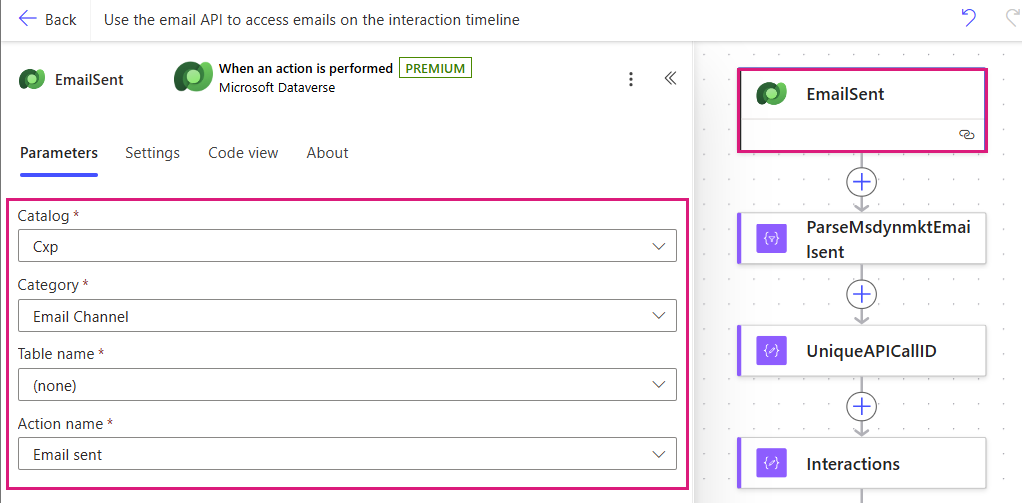
Trigger a flow when a marketing email is sent
When an email is sent in Customer Insights - Journeys, the ‘Email Sent’ action is triggered which is the perfect time to start the flow.
When an action is performed (Dataverse) - EmailSent
Catalog: Cxp
Category: Email Channel
Table name: (none)
Action name: Email sent
Parse the action data
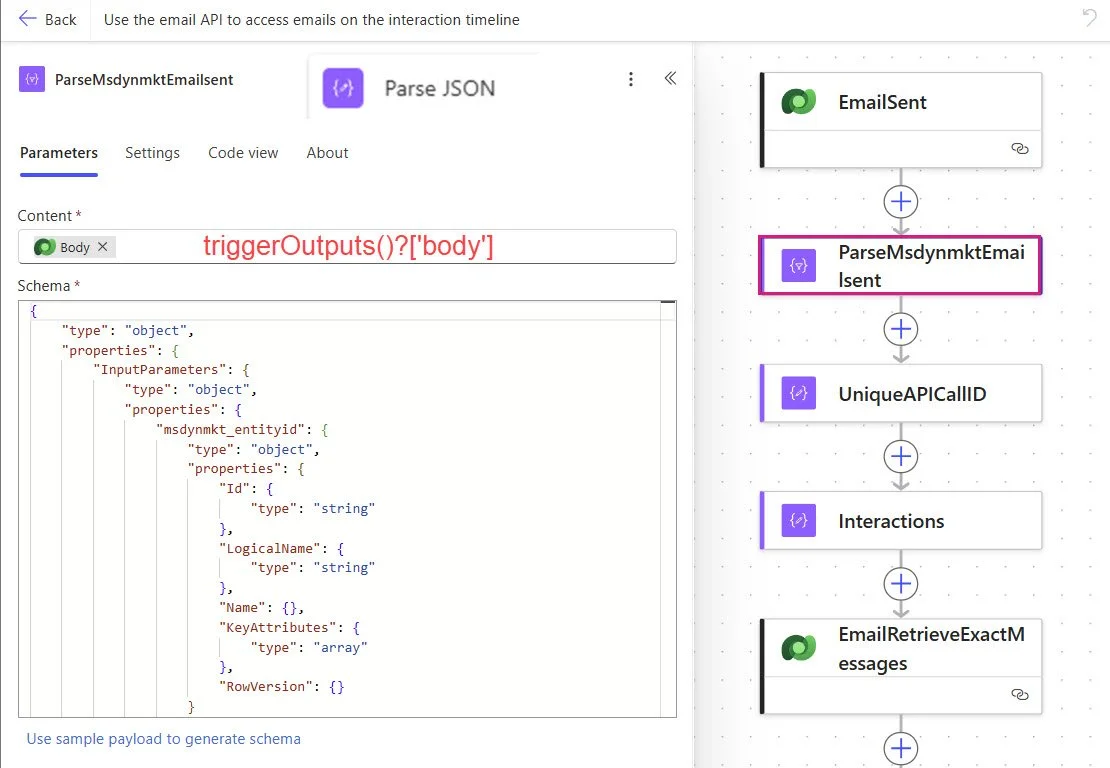
Not essential but makes the rest of the flow a bit easier to pull together. This gives us the info we need to interact with the Email Export API.
Parse JSON(Data Operations) - ParseMsdynmktEmailsent
Content: triggerOutputs()?['body']
Schema: (copy and paste from snippet at bottom of blog post)
Create a Unique API Call ID
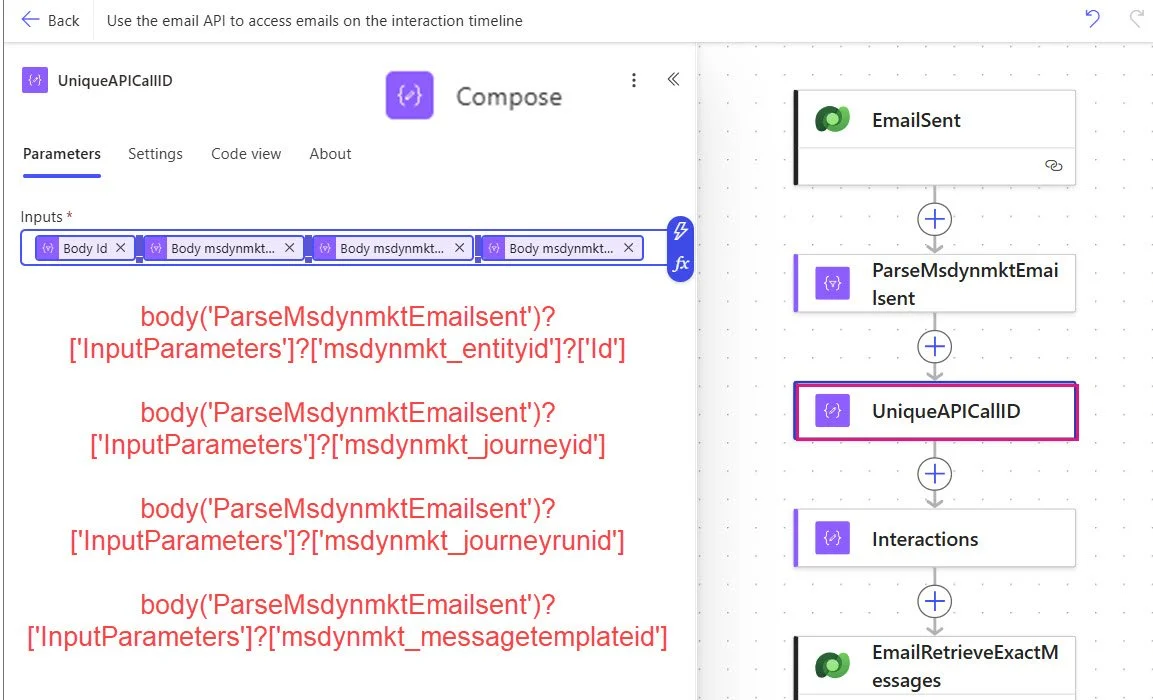
The docs say that this can be ‘Any unique string.’ but it actually gets retuned in a specific format which is:
ContactLeadGUID_JourneyGUID_JourneyRunGUID_EmailMessageGUID
So we catch this in a compose step for later
Compose (Data Operations) - UniqueAPICallID
Inputs: @{body('ParseMsdynmktEmailsent')?['InputParameters']?['msdynmkt_entityid']?['Id']}_@{body('ParseMsdynmktEmailsent')?['InputParameters']?['msdynmkt_journeyid']}_@{body('ParseMsdynmktEmailsent')?['InputParameters']?['msdynmkt_journeyrunid']}_@{body('ParseMsdynmktEmailsent')?['InputParameters']?['msdynmkt_messagetemplateid']}
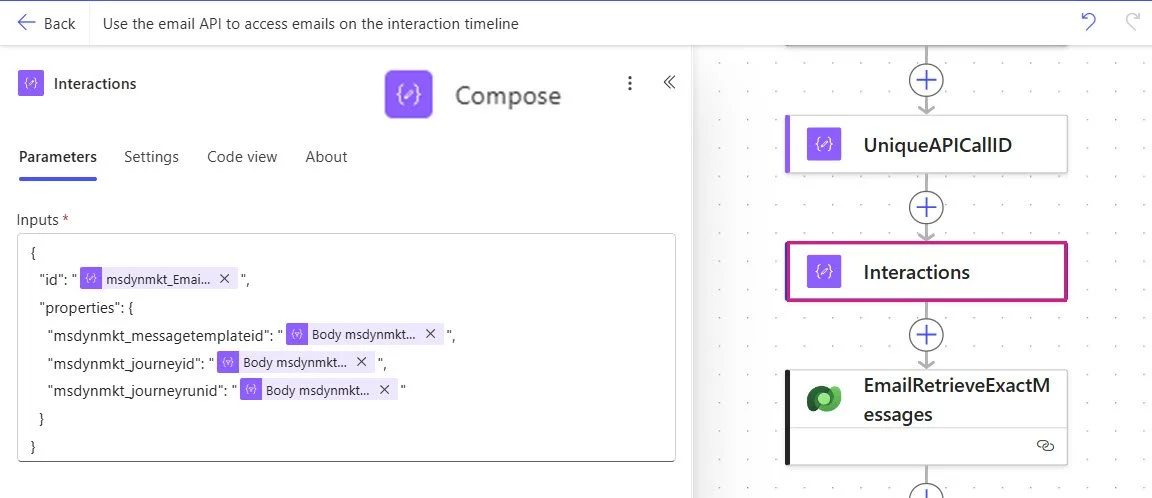
Compose the API Inputs
We can now collect the data into a compose step to pass to the unbound action as Request parameters.
Compose (Data Operations) - UniqueAPICallID
Inputs: (see below snippet)
{
  "id": "@{outputs('UniqueAPICallID')}",
  "properties": {
    "msdynmkt_messagetemplateid": "@{body('ParseMsdynmktEmailsent')?['InputParameters']?['msdynmkt_messagetemplateid']}",
    "msdynmkt_journeyid": "@{body('ParseMsdynmktEmailsent')?['InputParameters']?['msdynmkt_journeyid']}",
    "msdynmkt_journeyrunid": "@{body('ParseMsdynmktEmailsent')?['InputParameters']?['msdynmkt_journeyrunid']}"
  }
}
Call the ‘Email Export’ API
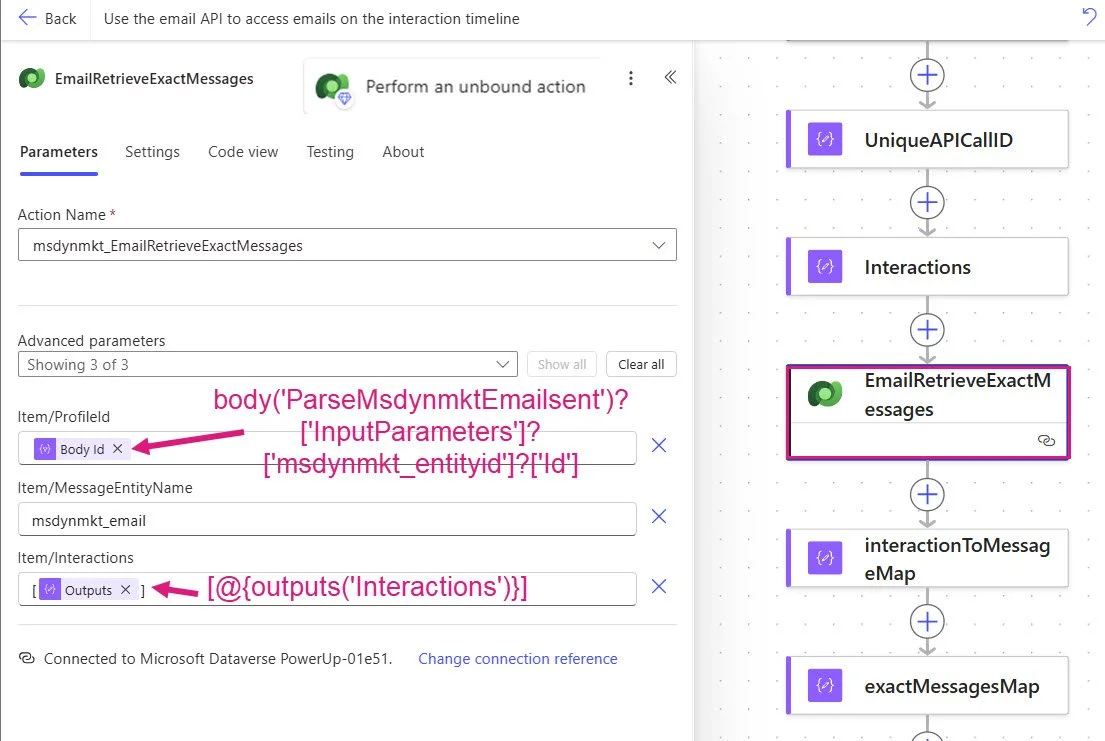
We can do by performing an unbound action and passing in the necessary request parameters.
Perform an unbound action (Dataverse) - EmailRetrieveExactMessages
Action Name: msdynmkt_EmailRetrieveExactMessages
item/ProfileId: body('ParseMsdynmktEmailsent')?['InputParameters']?['msdynmkt_entityid']?['Id']
item/MessageEntityName: msdynmkt_email
item/Interactions: [@{outputs('Interactions')}]
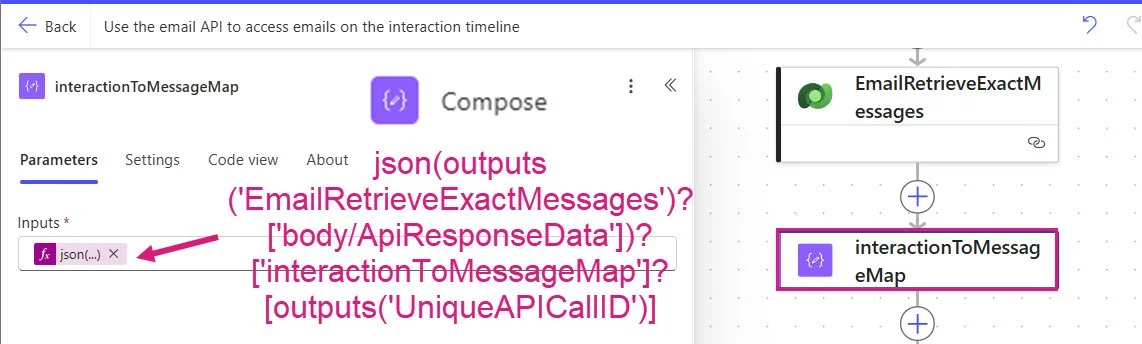
Find the ‘interactionToMessageMap’
The result is returned as ‘Stringified JSON’ and you need to get this ID to be able to extract the data form the response. It should be the same as the UniqueAPICallID we created earlier but the docs are keen to stop you from assuming this one. ‘interactionToMessageMap’: Maps each ID from the request to the resolved message ID. In many cases, these may be the same string, but don't rely on that; treat it as a mapping.
Compose (Data Operations) - interactionToMessageMap
Inputs: json(outputs('EmailRetrieveExactMessages')?['body/ApiResponseData'])?['interactionToMessageMap']?[outputs('UniqueAPICallID')]
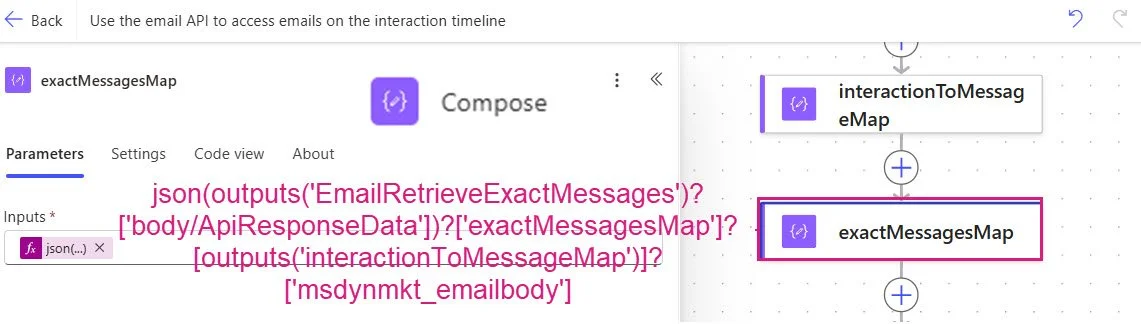
Find the exact email body that was sent
Finally - the thing you can for. You have found the raw HTML for the exact message sent!
Compose (Data Operations) - exactMessagesMap
Inputs: json(outputs('EmailRetrieveExactMessages')?['body/ApiResponseData'])?['exactMessagesMap']?[outputs('interactionToMessageMap')]?['msdynmkt_emailbody']
Get the name of the email message then create a HTML File
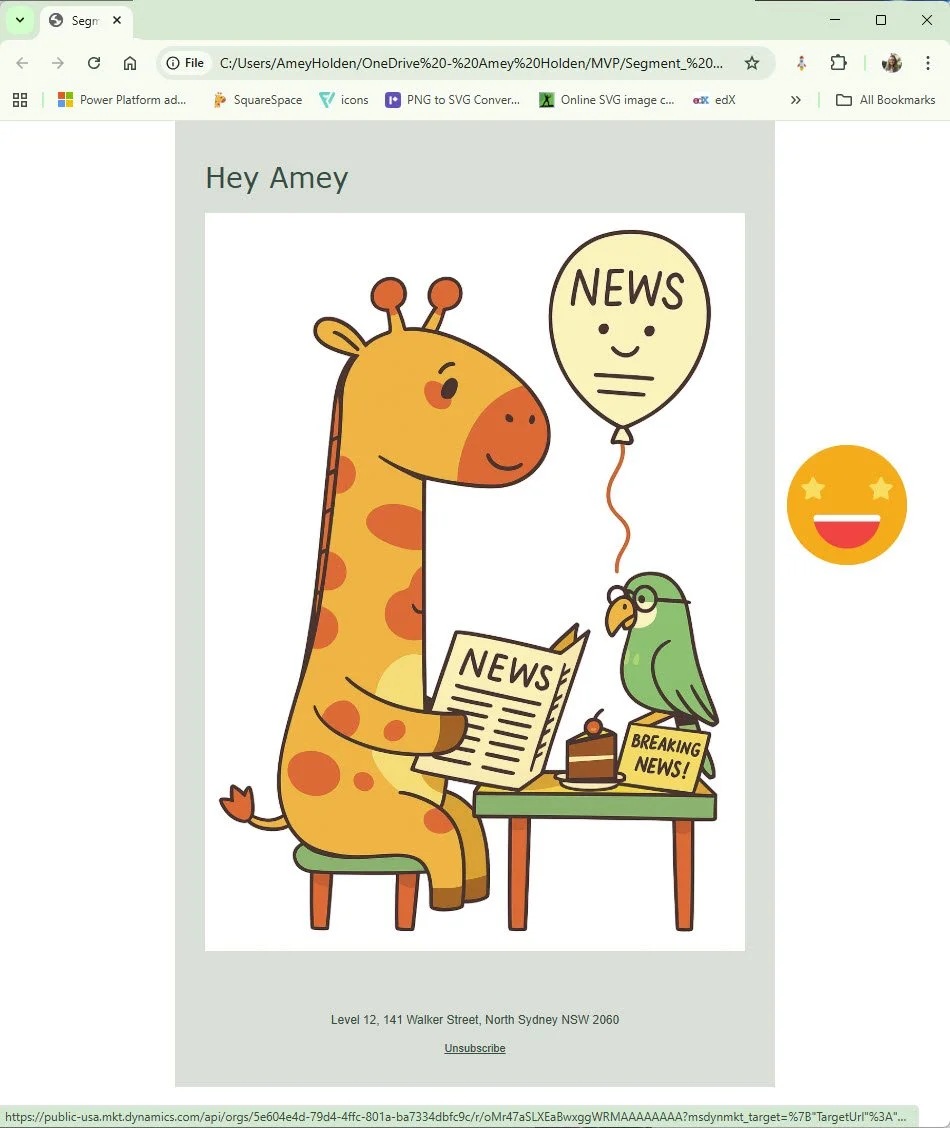
At this point you have the HTML for the email sent and you can whatever you want with it, for the sake of completeness I also retrieved the email message name/subject, and created a HTML file from the content in OneDrive to check the file you created is actually the email sent.
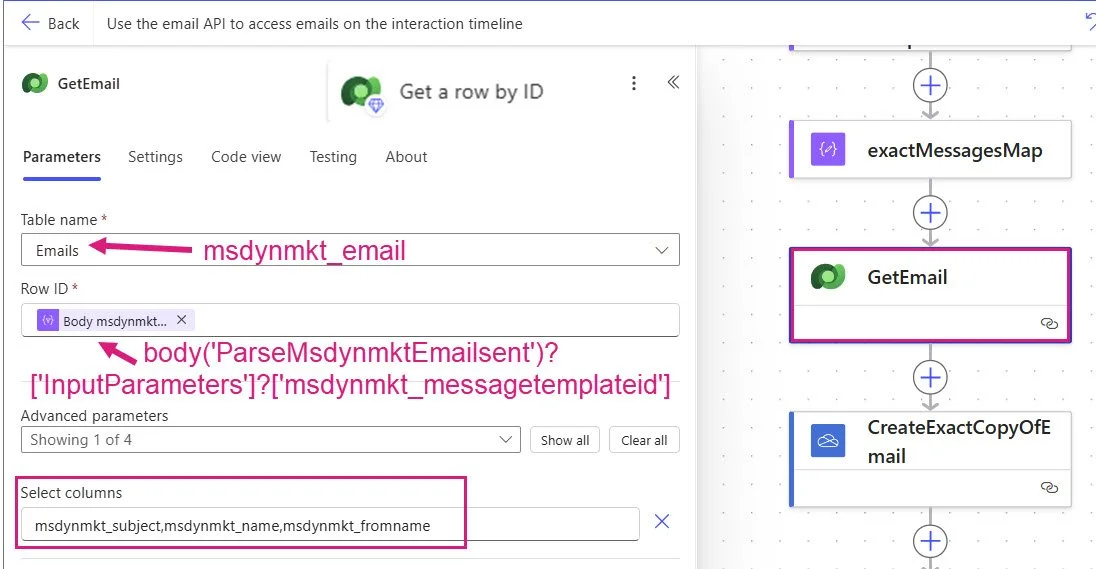
Get a row by ID (Dataverse) - GetEmail
Table name: Emails (msdynmkt_email)
Row ID: body('ParseMsdynmktEmailsent')?['InputParameters']?['msdynmkt_messagetemplateid']
Select columns: msdynmkt_subject,msdynmkt_name,msdynmkt_fromname
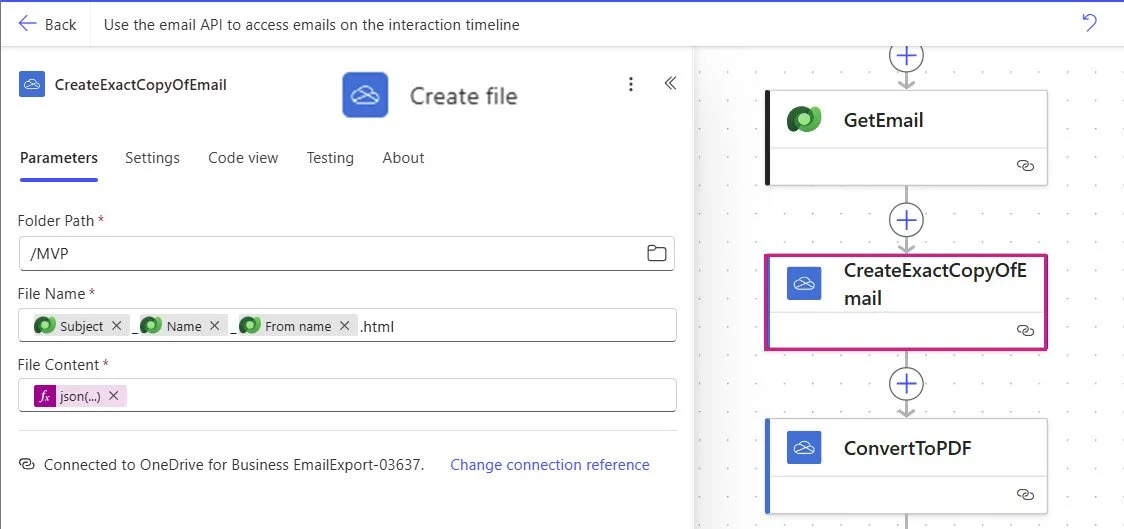
Create file (OneDrive for Business) - CreateExactCopyOfEmail
Folder Path: (this is entrely up to you my friend)
File Name: @{outputs('GetEmail')?['body/msdynmkt_subject']}_@{outputs('GetEmail')?['body/msdynmkt_name']}_@{outputs('GetEmail')?['body/msdynmkt_fromname']}.html
File Content: json(outputs('EmailRetrieveExactMessages')?['body/ApiResponseData'])?['exactMessagesMap']?[outputs('UniqueAPICallID')]?['msdynmkt_emailbody']
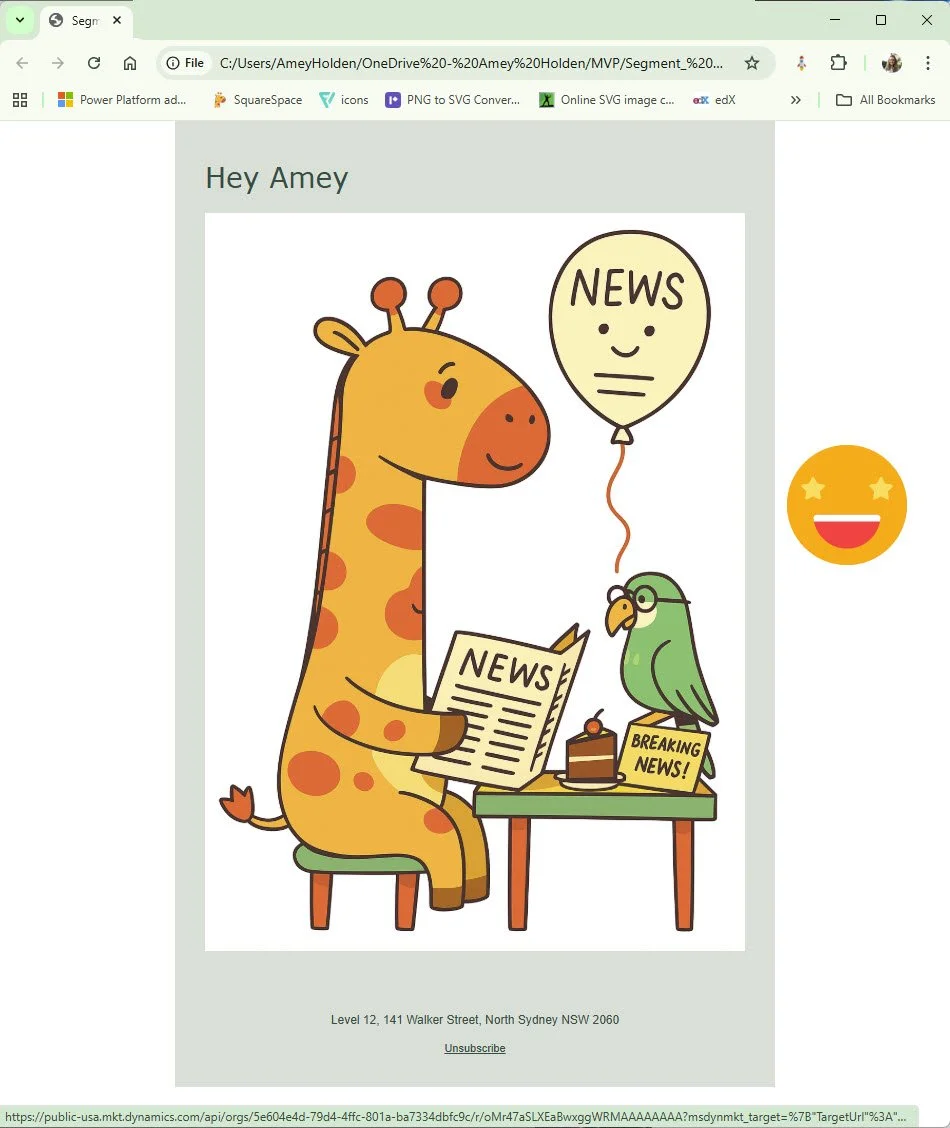
Behold an exact copy of an email sent from Dynamics 365 Customer Insights - Journeys!
Now what?
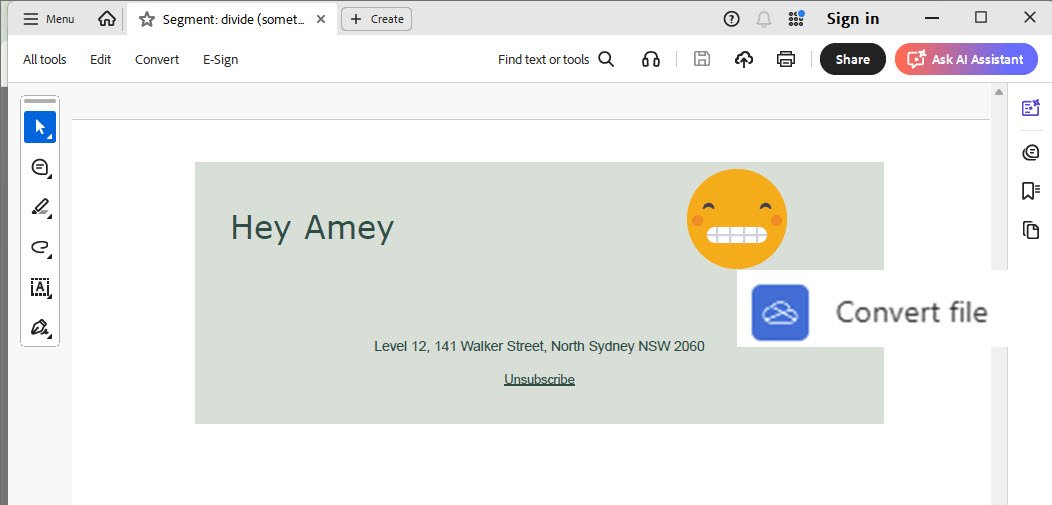
You can convert the HTML to a PDF using the OneDrive for Business ‘Convert File‘ action but be aware any images hosted via URL will not come through in the PDF copy.
The end
I hope you had fun and enjoyed poking around in Email Export APIs with me. Some handy links below and scroll past the hunky JSON schema for any comments or questions.
Official docs -> https://learn.microsoft.com/en-us/dynamics365/customer-insights/journeys/developer/email-api
Parse JSON schema for ‘ParseMsdynmktEmailsent’:
{
    "type": "object",
    "properties": {
        "InputParameters": {
            "type": "object",
            "properties": {
                "msdynmkt_entityid": {
                    "type": "object",
                    "properties": {
                        "Id": {
                            "type": "string"
                        },
                        "LogicalName": {
                            "type": "string"
                        },
                        "Name": {},
                        "KeyAttributes": {
                            "type": "array"
                        },
                        "RowVersion": {}
                    }
                },
                "msdynmkt_profileid": {
                    "type": "string"
                },
                "msdynmkt_actionid": {
                    "type": "string"
                },
                "msdynmkt_journeyid": {
                    "type": "string"
                },
                "msdynmkt_journeyrunid": {
                    "type": "string"
                },
                "msdynmkt_messagetemplateid": {
                    "type": "string"
                },
                "msdynmkt_isunresolvedprofile": {
                    "type": "boolean"
                },
                "msdynmkt_originaltimestamp": {
                    "type": "string"
                },
                "msdynmkt_emailaddress": {
                    "type": "string"
                },
                "msdynmkt_marketinginteractionversion": {
                    "type": "integer"
                },
                "msdynmkt_emailId": {
                    "type": "object",
                    "properties": {
                        "Id": {
                            "type": "string"
                        },
                        "LogicalName": {
                            "type": "string"
                        },
                        "Name": {},
                        "KeyAttributes": {
                            "type": "array"
                        },
                        "RowVersion": {}
                    }
                },
                "msdynmkt_customerjourneyid": {
                    "type": "object",
                    "properties": {
                        "Id": {
                            "type": "string"
                        },
                        "LogicalName": {
                            "type": "string"
                        },
                        "Name": {},
                        "KeyAttributes": {
                            "type": "array"
                        },
                        "RowVersion": {}
                    }
                },
                "msdynmkt_messagevariationname": {
                    "type": "string"
                },
                "msdynmkt_messagevariationindexes": {
                    "type": "string"
                },
                "msdynmkt_internalmarketinginteractionid": {
                    "type": "string"
                },
                "msdynmkt_businessunitid": {
                    "type": "string"
                },
                "msdynmkt_journeyversion": {},
                "msdynmkt_messagetemplateversion": {},
                "msdynmkt_sourcesystem": {},
                "msdynmkt_details": {},
                "AsyncOperationId": {
                    "type": "string"
                }
            }
        },
        "OutputParameters": {
            "type": "object",
            "properties": {}
        },
        "SdkMessage": {
            "type": "string"
        },
        "RunAsSystemUserId": {
            "type": "string"
        }
    }
}
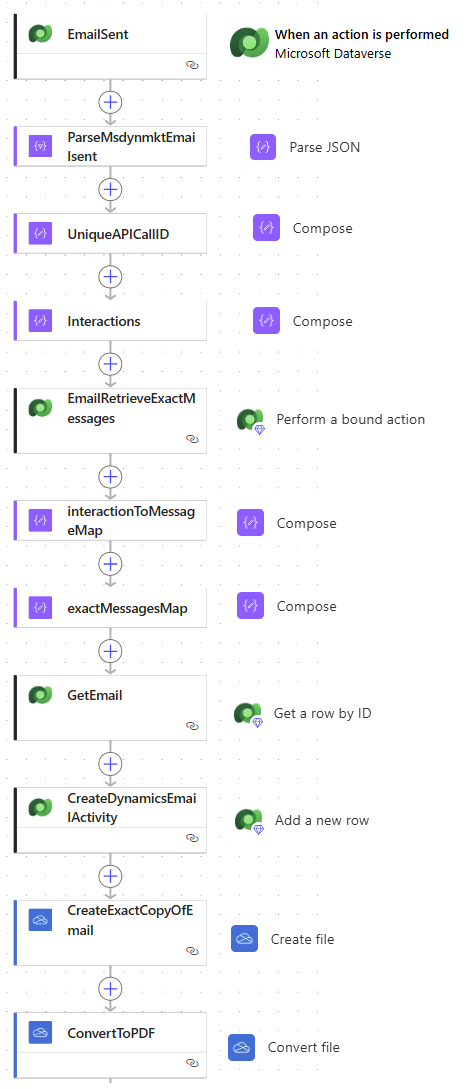
I will continue to pretend I use the modern flow experience to build flows rather than just for blog documentation purposes.