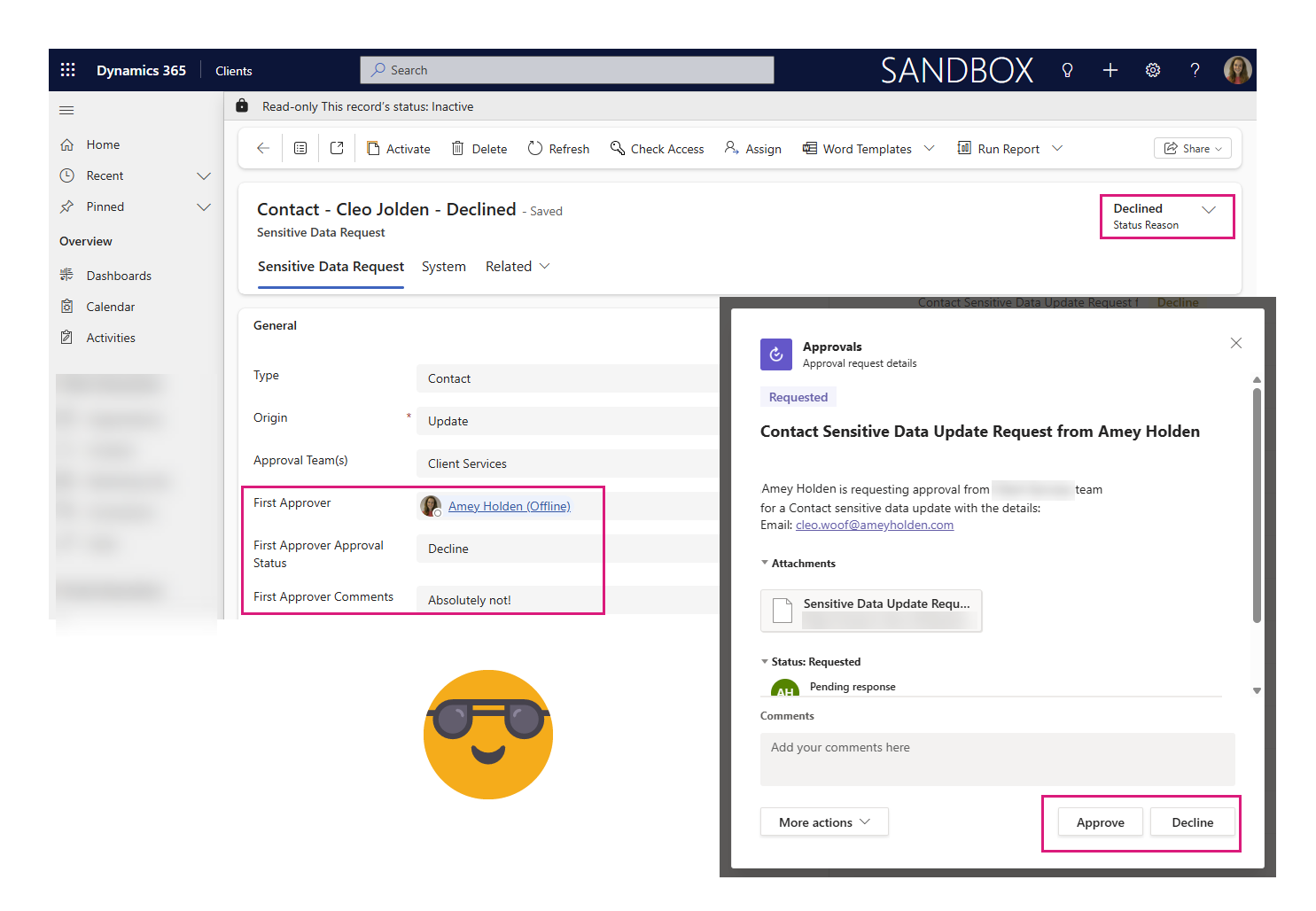
Trigger a flow when a Power Automate Approval is complete (Accepted or Rejected)
In my previous post ‘Respond to a Power Automate Flow Approval in a Power Apps Custom Page or Canvas App’ I showed you how to capture responses to Power Automate Approval inside a Customer Page or Canvas App. This blog is the second step on the journey to get Power Automate Approvals more tightly integrated with your model-driven apps and Dynamics 365 processes.
It will show you how to start a flow once an Power Automate Approval is complete, how to extract information from the approval such as the approver response (accept/Reject/Any other Custom Response), comments, who responded and the overall outcome of the Power Automate Approval request. Then from there, how you can use that information to surface the approval response data in your model-driven app processes.
By capturing the Approval ID when creating an approval, we can open the door to act on approval requests inside your app experience (as you saw in my last post), and also (as you will see in this post) accessing the approval information directly in context of what the approval was for.
Note: Make sure you check my previous post for context as you need to have the ‘Approval' ID’ captured somewhere on the initial source of the approval request e.g. the ‘Sensitive Data Update request’ row, so that you know where to surface the approval response data.
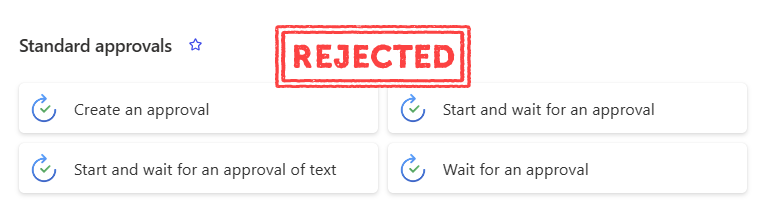
‘Wait for an Approval’ is not the answer
Lets get this cleared up straight away. I know there are actions in Power Automate that allow you to ‘Wait’ for the approval but please don’t use these. I have a million reasons why but here’s the top ones:
There is a maximum duration 30 days for a single flow run
When things go wrong, the flow cannot be restarted from the fail point it all has to run again
It’s a drain on system memory, API calls and processing power
They are incredibly hard to troubleshoot
So now we have agree that ‘Wait for an approval’ is not the answer - how can you trigger an automation when a Power Automate Approval response is received?
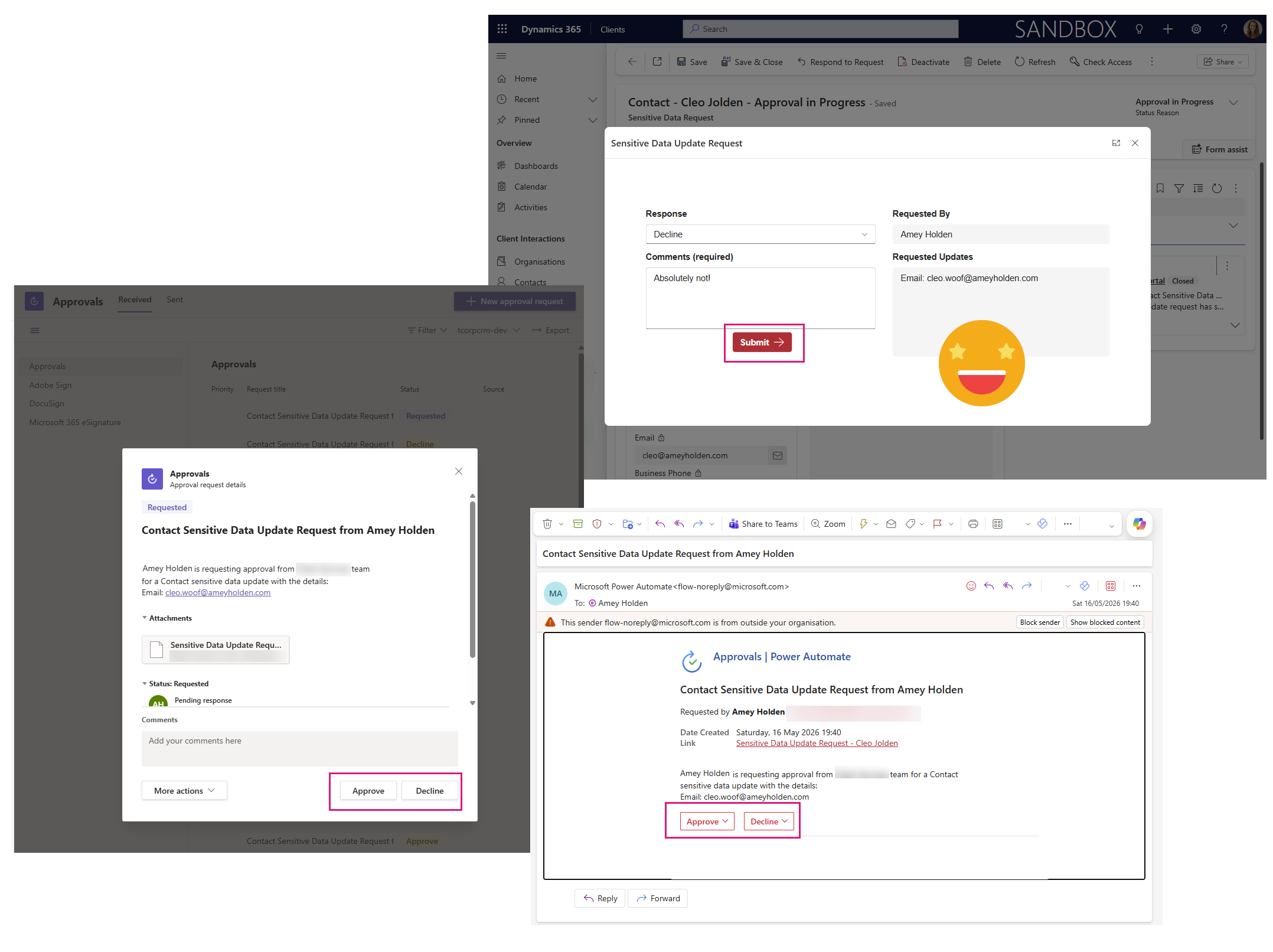
All responses lead to an ‘Approval Response’ in Dataverse…
No matter where the approval response comes from, they all end up back in the ‘Approval Response’ (msdyn_flow_approvalresponse) table in Dataverse.
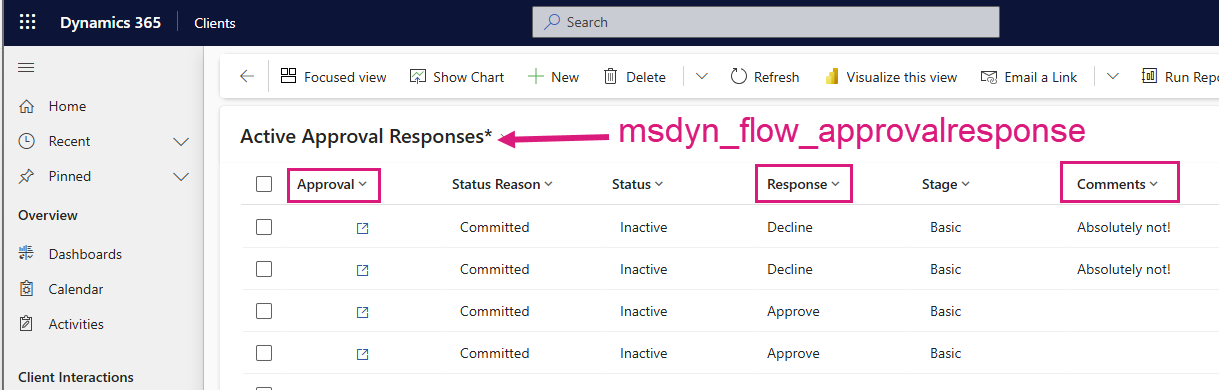
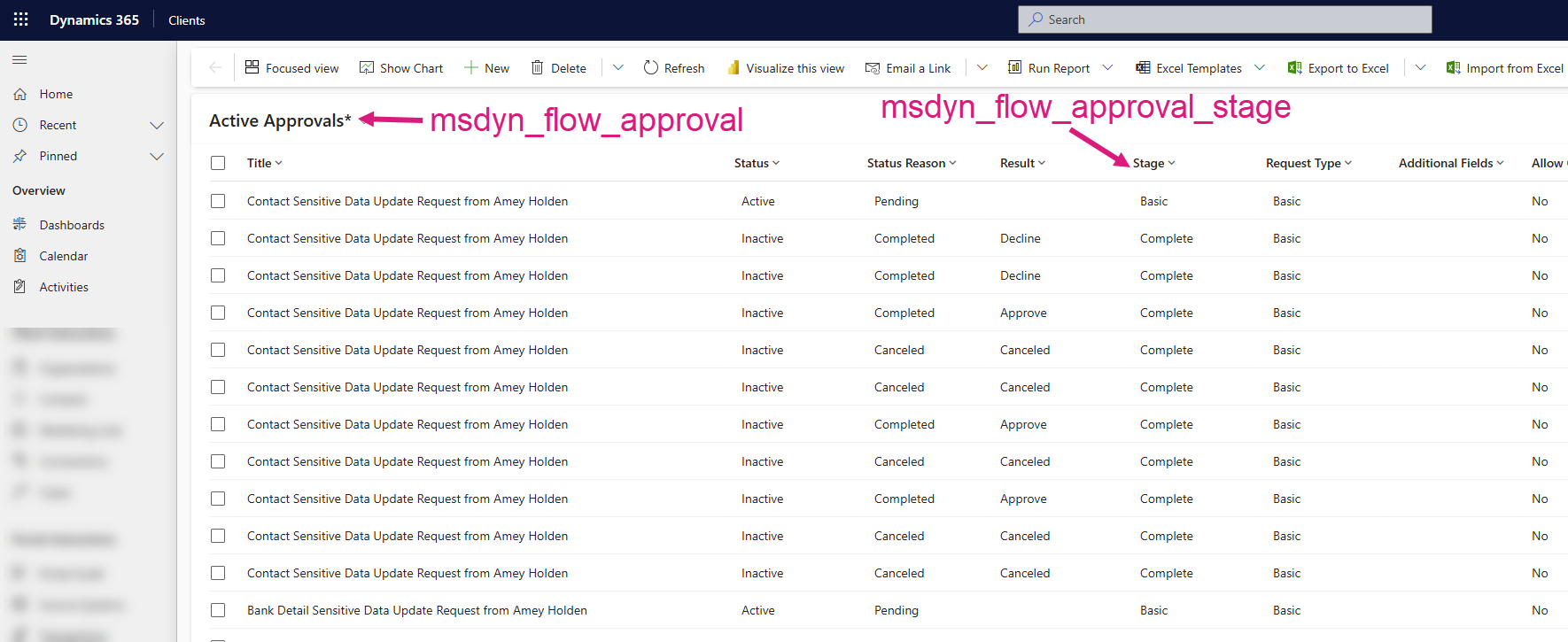
…and a ‘Complete’ (or ‘Cancelled’) Approval in Dataverse
Once the final approval response has been received, it triggers an update to the related ‘Approval’ (msdyn_flow_approval) row in Dataverse with the updated status of the approval. If you are using a multi step approval process then it will only be on the final approval response that the Approval will be marked as ‘Complete’. For a simple one step approval request, the first response will go directly to update the ‘Approval’ as ‘Complete’ or ‘Cancelled’. No matter the result, if the approver responds it will always be marked ‘Complete’.
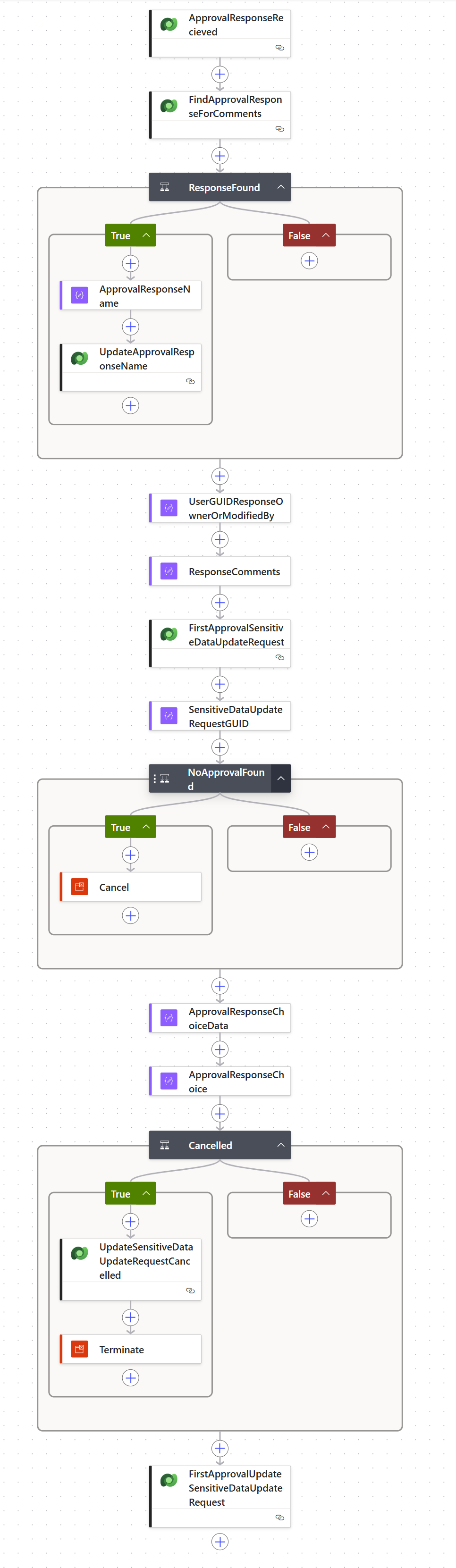
A Power Automate Flow to Wrangle Power Automate Approvals
Approval Stage ‘Complete’
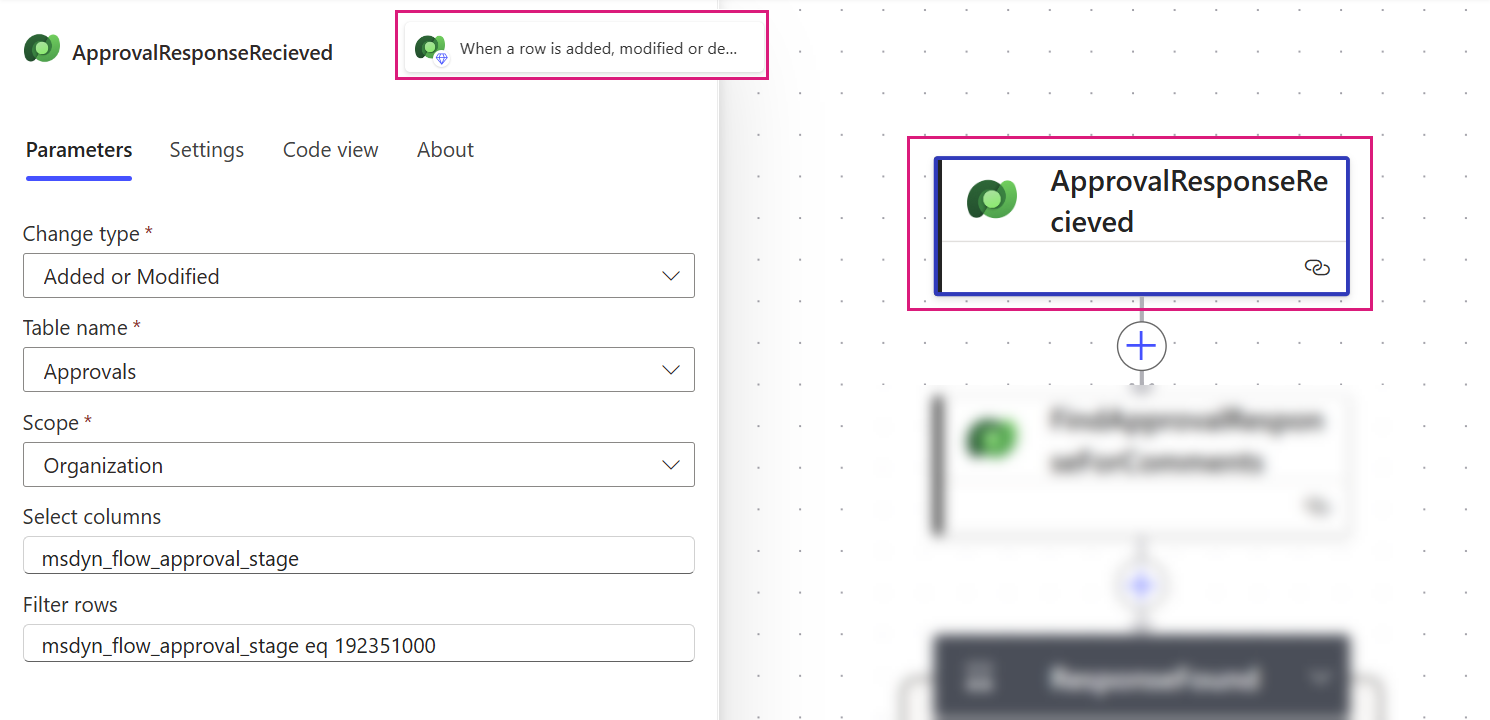
The flow will be triggered when an approval gets to Stage (msdyn_flow_approval_stage) Complete (192351000) which means the approval process is finished.
ApprovalResponseReceived
Dataverse – When a row is added, modified or deleted
Change type: Added or Modified
Table name: Approvals (msdyn_flow_approval)
Scope: Organization
Select columns: msdyn_flow_approval_stage
Filter rows: msdyn_flow_approval_stage eq 192351000
Retrieve Approval Response
Retrieve the approval response record including comments, user, and approval result (e.g. ‘Approve’ or ‘Reject’).
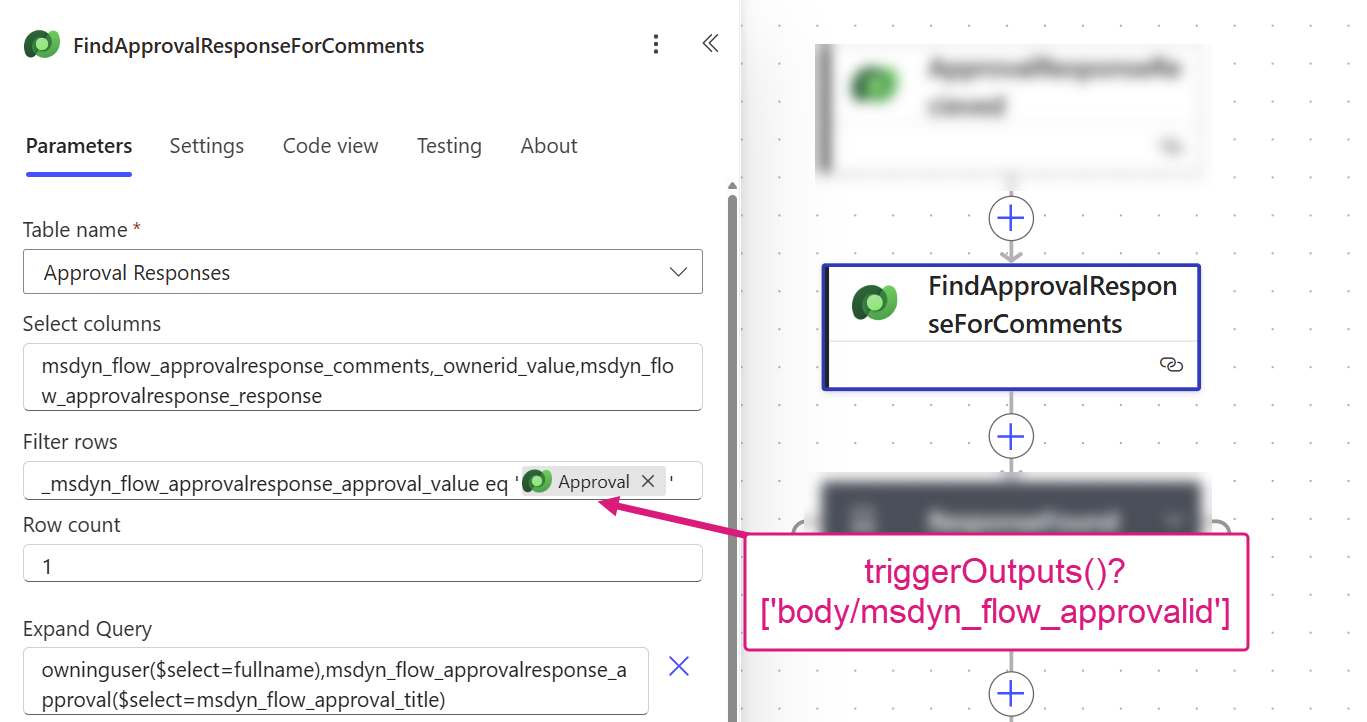
FindApprovalResponseForComments
Dataverse – List rows
Table name: Approval Responses (msdyn_flow_approvalresponses)
Select: msdyn_flow_approvalresponse_comments,_ownerid_value,msdyn_flow_approvalresponse_response
Filter: msdynflow_approvalresponse_approval_value eq '@{triggerOutputs()?['body/msdyn_flow_approvalid']}'
Row count: 1
Expand Query: owninguser($select=fullname),msdyn_flow_approvalresponse_approval($select=msdyn_flow_approval_title)
Response Found?
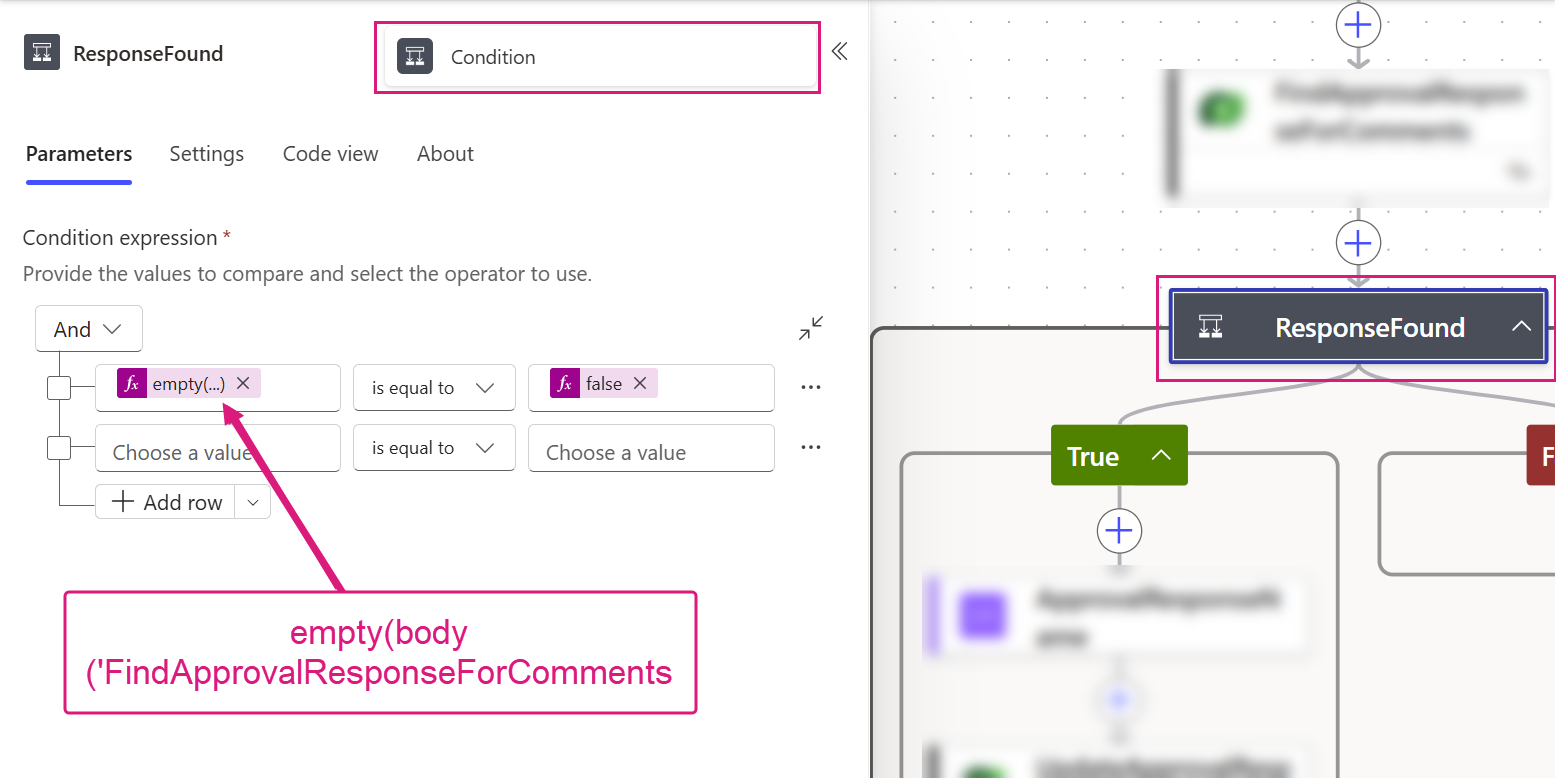
This ‘Response Found?‘ branch is mostly just for me OCD purposes to update the ‘Name’ of the Approval Response row in Dataverse and is not essential to the process. Check if the approval response is found, if the approval is cancelled, there will not be an approval response record so it’s important to branch here to avoid failures when editing the Approval Response row
ResponseFound
Control – Condition
empty(body('FindApprovalResponseForComments')?['value']) is equal to false
Response Found - Yes
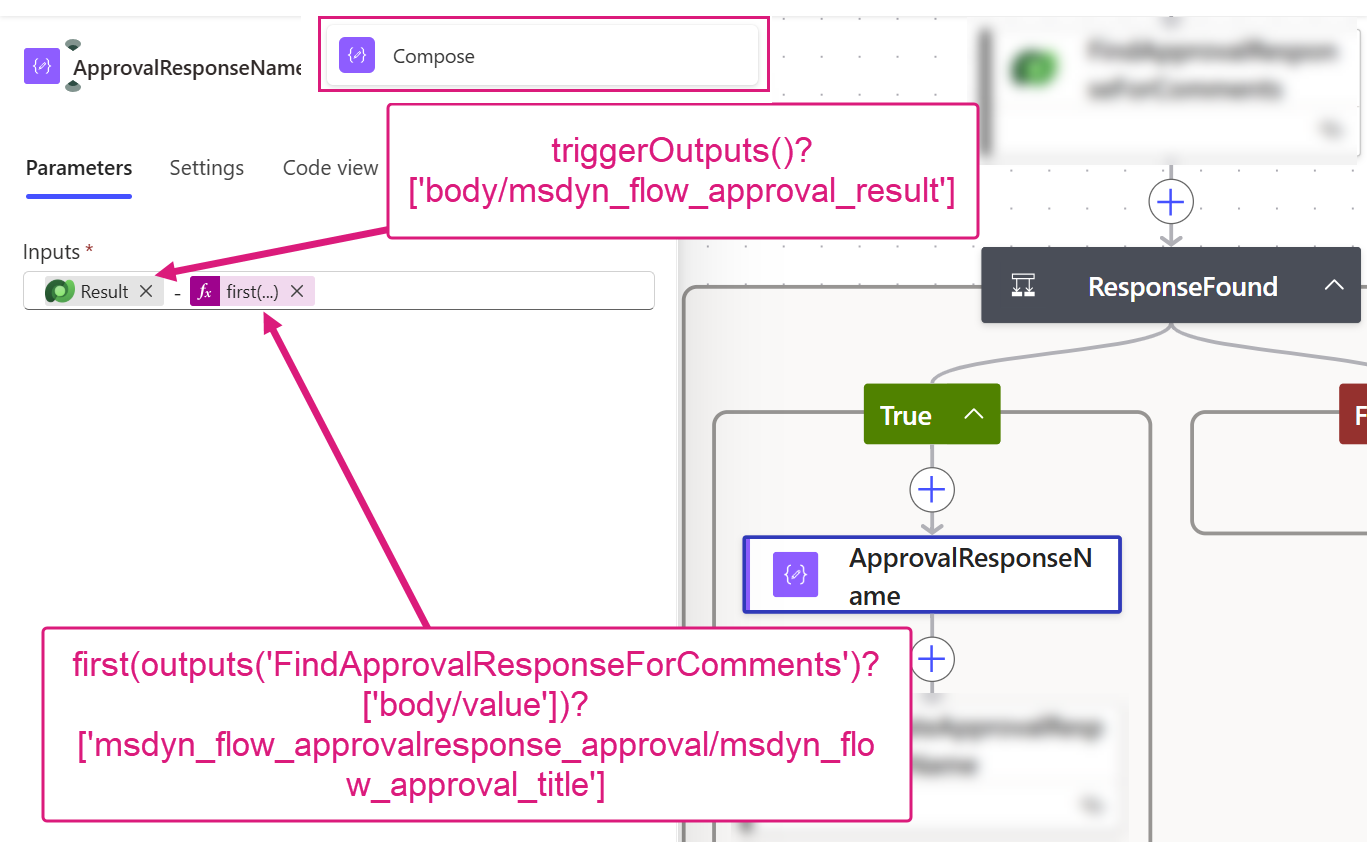
Create a nice useful name for the response row by combining the response result and the title (subject) of the approval it relates to.
Create Approval Response Name
ApprovalResponseName
Data Operation - Compose
@{triggerOutputs()?['body/msdyn_flow_approval_result']} - @{first(outputs('FindApprovalResponseForComments')?['body/value'])?['msdyn_flow_approvalresponse_approval/msdyn_flow_approval_title']}
Update Approval Response name
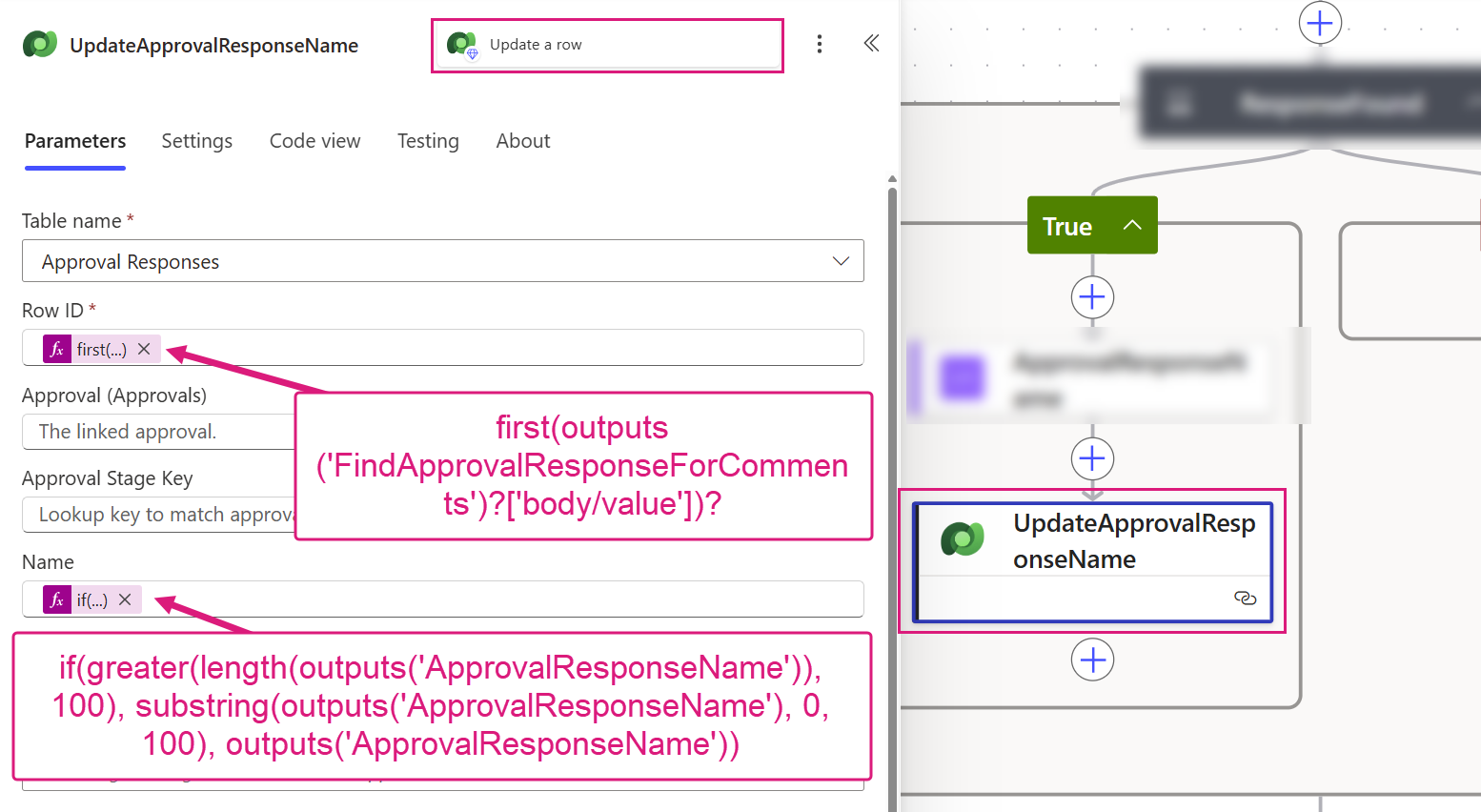
Limit the name to 100 characters due to restrictions on the ‘Name’ field in Dataverse, and update the Approval Response row
UpdateApprovalResponseName
Dataverse - Update a row
Table name: Approval Responses (msdyn_flow_approvalresponses)
Row ID: first(outputs('FindApprovalResponseForComments')?['body/value'])?['msdyn_flow_approvalresponseid']
Name: if(greater(length(outputs('ApprovalResponseName')), 100), substring(outputs('ApprovalResponseName'), 0, 100), outputs('ApprovalResponseName'))
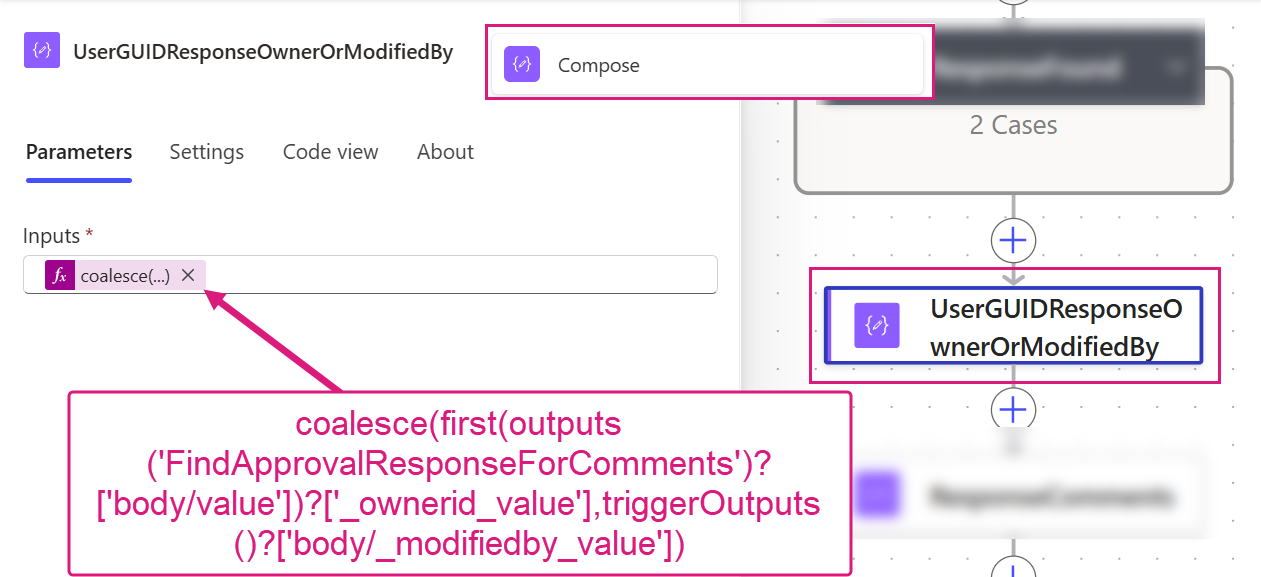
Extract Approver User ID
Back to relevant parts of the automation… This will be used to link the approval to the correct person, by using coalesce() we first try to use the Approval Response owner but if they doesn’t exist, the last user who modified the approval is the person who cancelled it.
UserGUIDResponseOwnerOrModifiedBy
Data Operation - Compose
coalesce(first(outputs('FindApprovalResponseForComments')['body/value'])['_ownerid_value'], triggerOutputs()?['body/_modifiedby_value'])
Extract Approver Comments
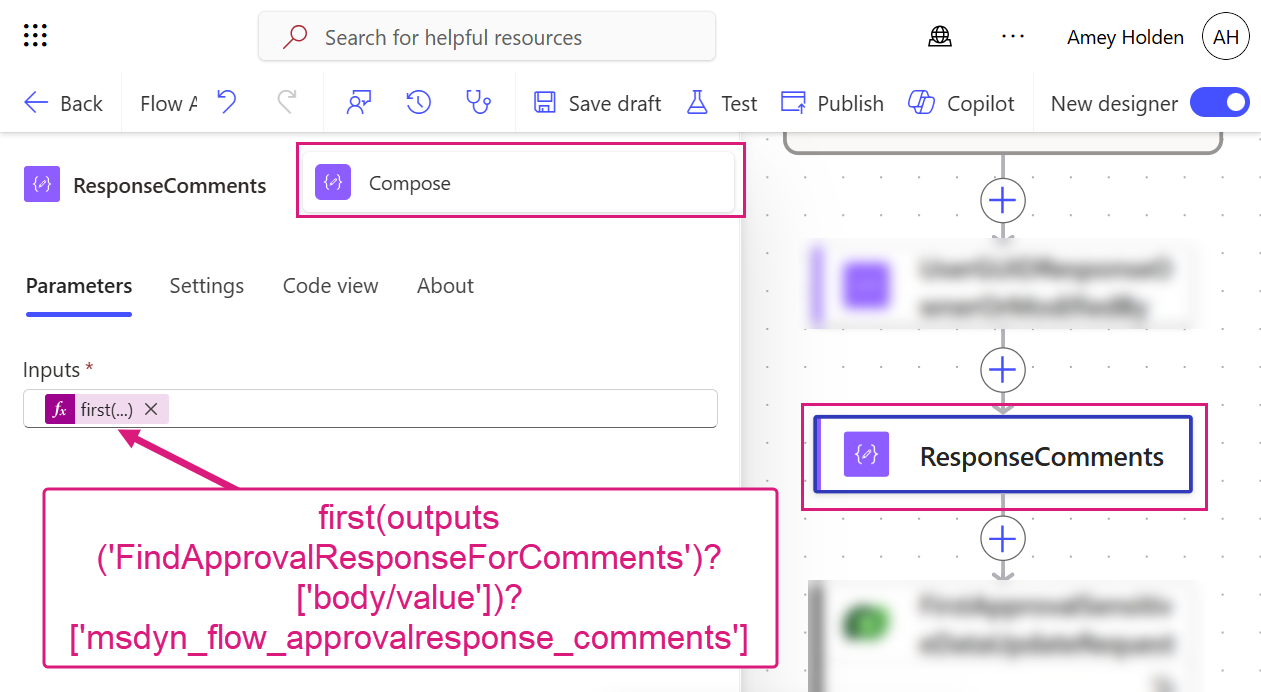
If the approver left any comments, we can pull them from the approval response here.
ResponseComments
Data Operation - Compose
first(outputs('FindApprovalResponseForComments')['body/value'])['msdyn_flow_approvalresponse_comments']
Find row which approval is for in Dataverse
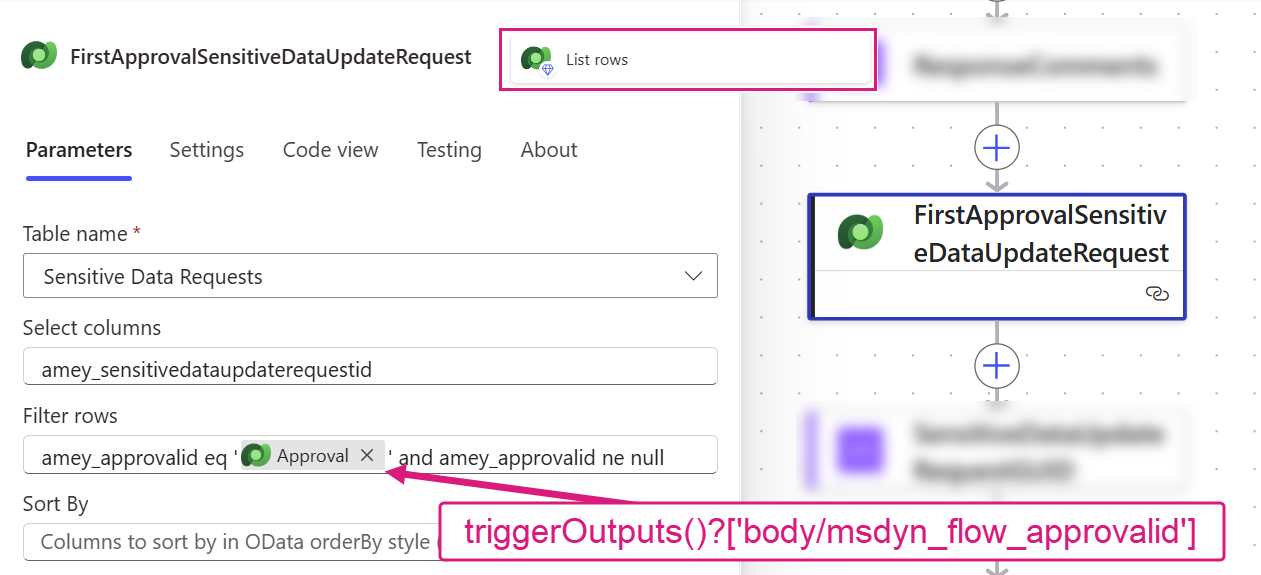
At this point you may have multiple places you need to check, if you run approvals on multiple tables/stages. We are looking to find the row with the ‘Approval ID’ which you captured when you started the approval (see previous blog post). Adjust this step accordingly to check all places, then identify the matching table/GUID. For this example I’m using a single table/column ‘Sensitive Data Request’/Approval ID (amey_approvalid), which the approval can come from for ease of explanation but it can be easily scaled with a few adjustments.
FirstApprovalSensitiveDataUpdateRequest
Dataverse - List rows
Table: Sensitive Data Requests
Select columns: amey_sensitivedataupdaterequestid
Filter: amey_approvalid eq '@{triggerOutputs()?['body/msdyn_flow_approvalid']}' and amey_approvalid ne null
Extract GUID for row which approval is for
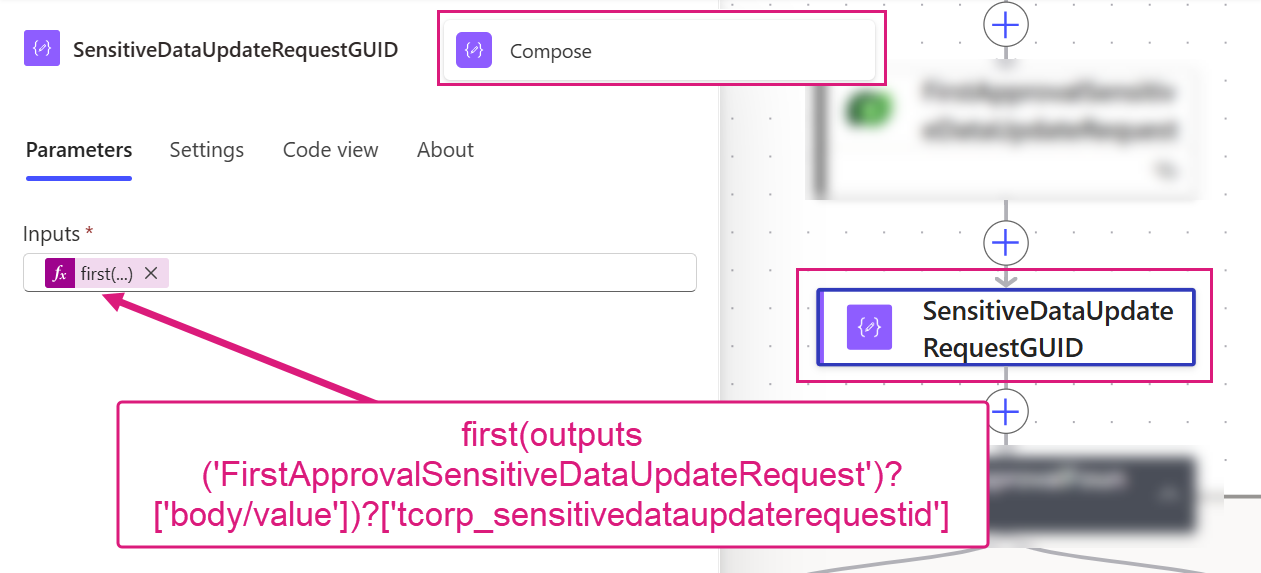
Storing this in a compose step makes i easier to reference later form multiple places with more consistency and has less unnecessary baggage, compared to a variable.
SensitiveDataUpdateRequestGUID
Data Operation - Compose
@{first(outputs('FirstApprovalSensitiveDataUpdateRequest')['body/value'])?['tcorp_sensitivedataupdaterequestid']}@{first(outputs('SecondApprovalSensitiveDataUpdateRequest')['body/value'])?['tcorp_sensitivedataupdaterequestid']}
Row which approval is for not found?
In case the row is not found, we need to end the process gracefully. Power Automate Approvals can be used for lots of things so we need to build to expect this scenario.
NoApprovalFound
Control – Condition
outputs('SensitiveDataUpdateRequestGUID') is equal to BLANK
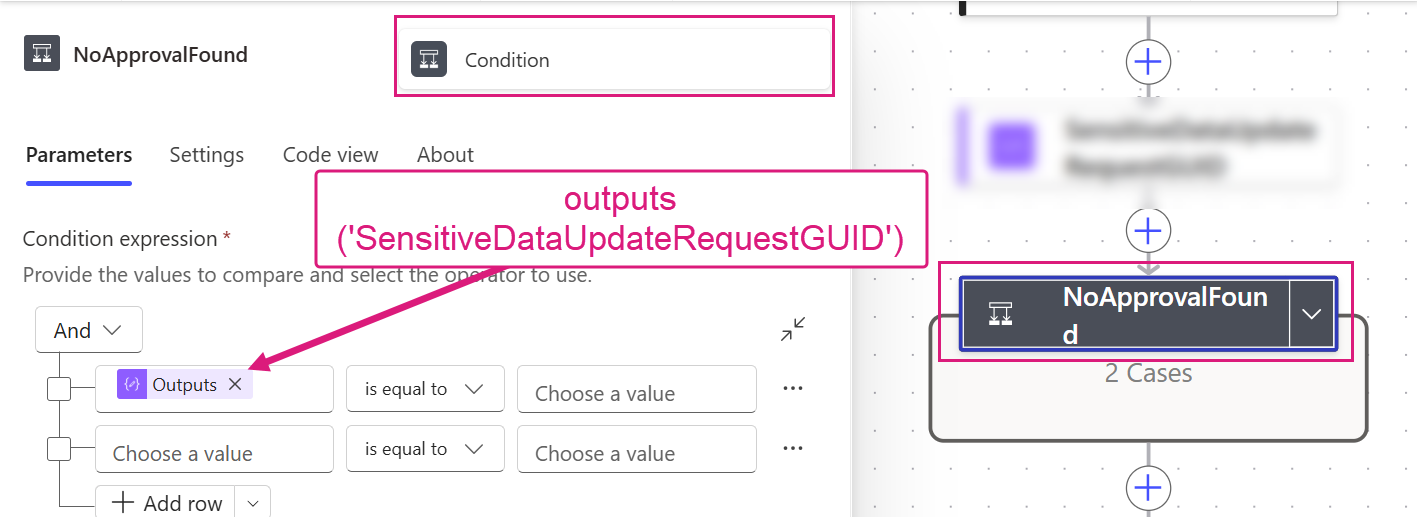
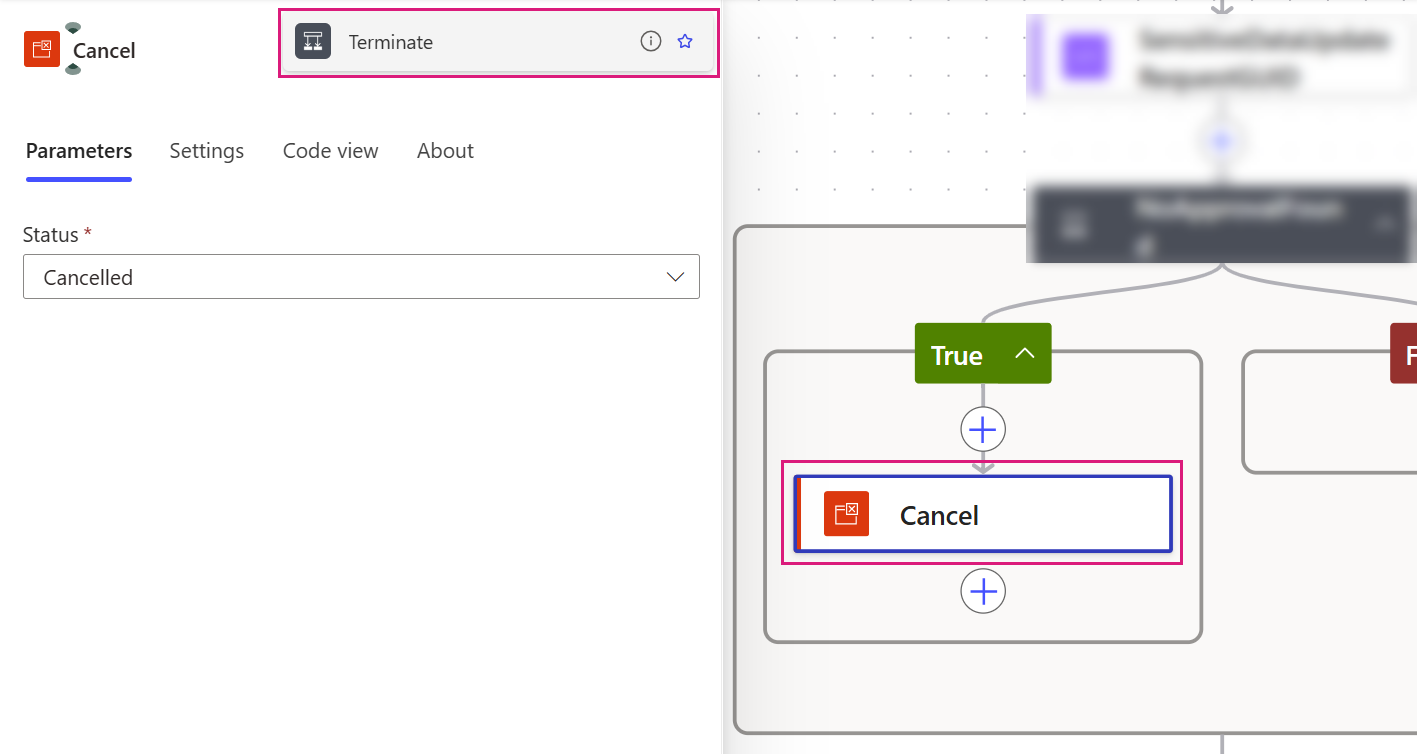
Yes (not found) - Cancel flow run
Cancel
Control – Terminate
Status: Cancelled
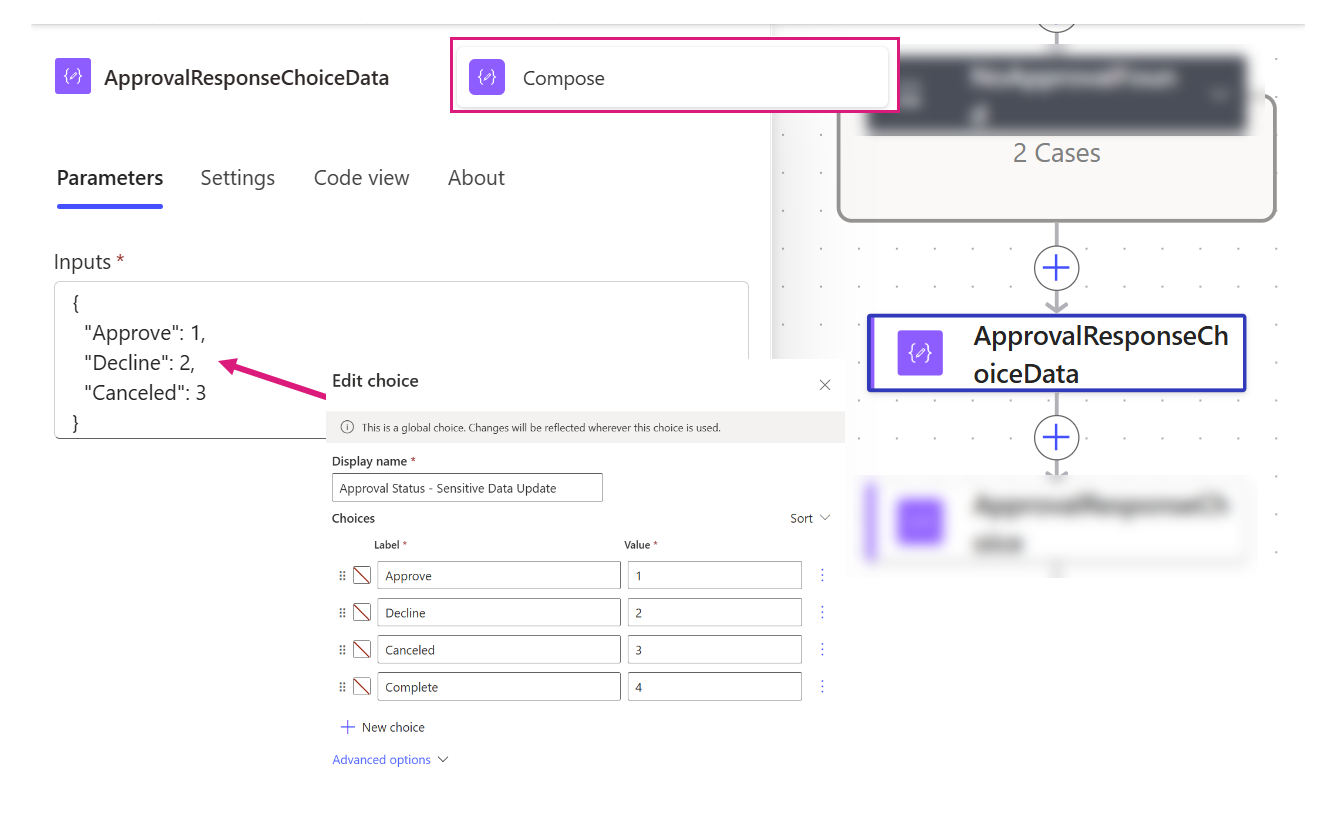
Define ‘Approval Response’ Choice Values
This depends on if you have an choice field you want to store the approval response in or not, as it’s captured in text on the ‘Approval’ row. Choices are always a much more useful structured way to store data if you can. First you need to identify each choice label and integer as a JSON structure as shown below
ApprovalResponseChoiceData
Data Operation - Compose
{
"Approve": 1,
"Decline": 2,
"Canceled": 3
}
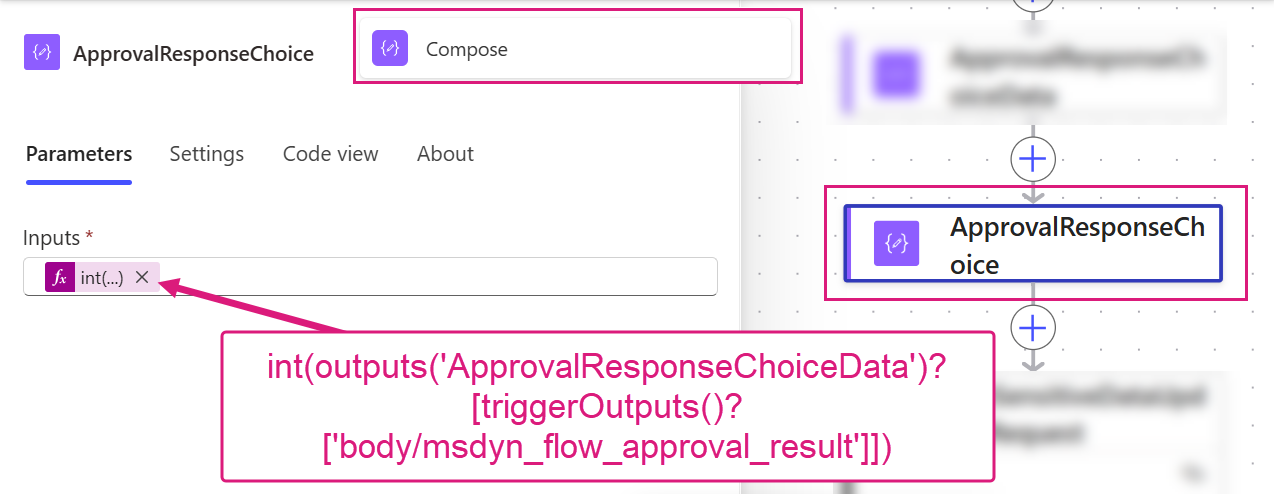
Convert Text into ‘Approval Response’ Choice Values
It is important that your response options on the approval request, match the response options on your choice column for this to work. Using the response text we can select the correct integer from the JSON above to populate the choice column in Dataverse.
ApprovalResponseChoice
Data Operation - Compose
int(outputs('ApprovalResponseChoiceData')[triggerOutputs()?['body/msdyn_flow_approval_result']])
Is Approval response ‘Cancelled’?
In case the approval has been cancelled, you will probably want to handle the next steps differently so this ids your chance.
Terminate
Control – Condition
triggerOutputs()?['body/msdyn_flow_approval_result'] is equal to Canceled
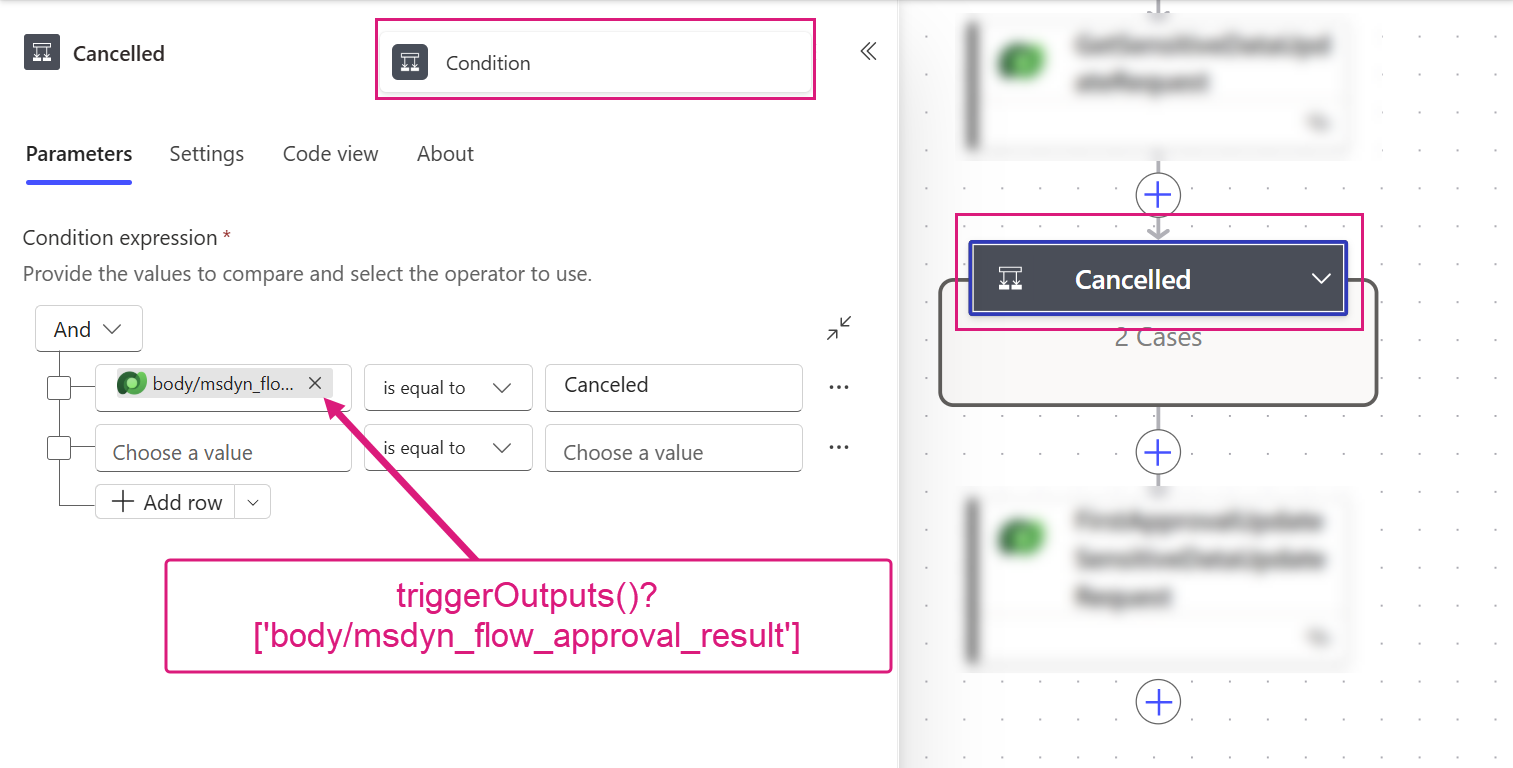
Yes - Approval response is ‘Cancelled’
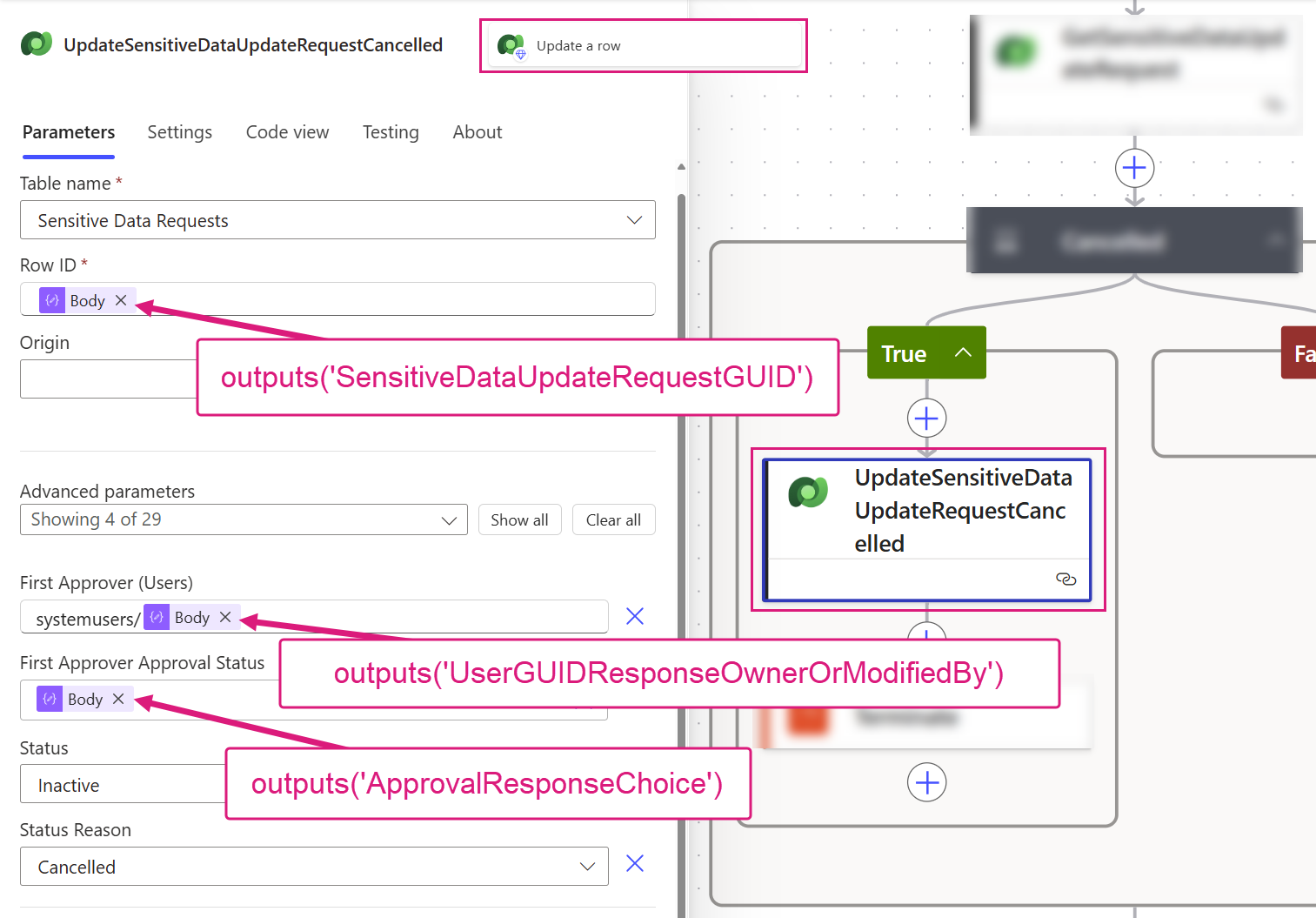
This step is more up to you and how you want to handle a cancelled approval but in this case I am passing back the Cancelled responses, who cancelled it and adjusting the row Status/Status Reason accordingly.
Update row which approval is for as cancelled
UpdateSensitiveDataUpdateRequestCancelled
Dataverse - Update a row
Table name: Sensitive Data Requests
Row ID: outputs('SensitiveDataUpdateRequestGUID')
Approver (User Lookup): systemusers/@{outputs('UserGUIDResponseOwnerOrModifiedBy')}
Approver Response: outputs('ApprovalResponseChoice')
Status Reason: Cancelled
Status: Inactive
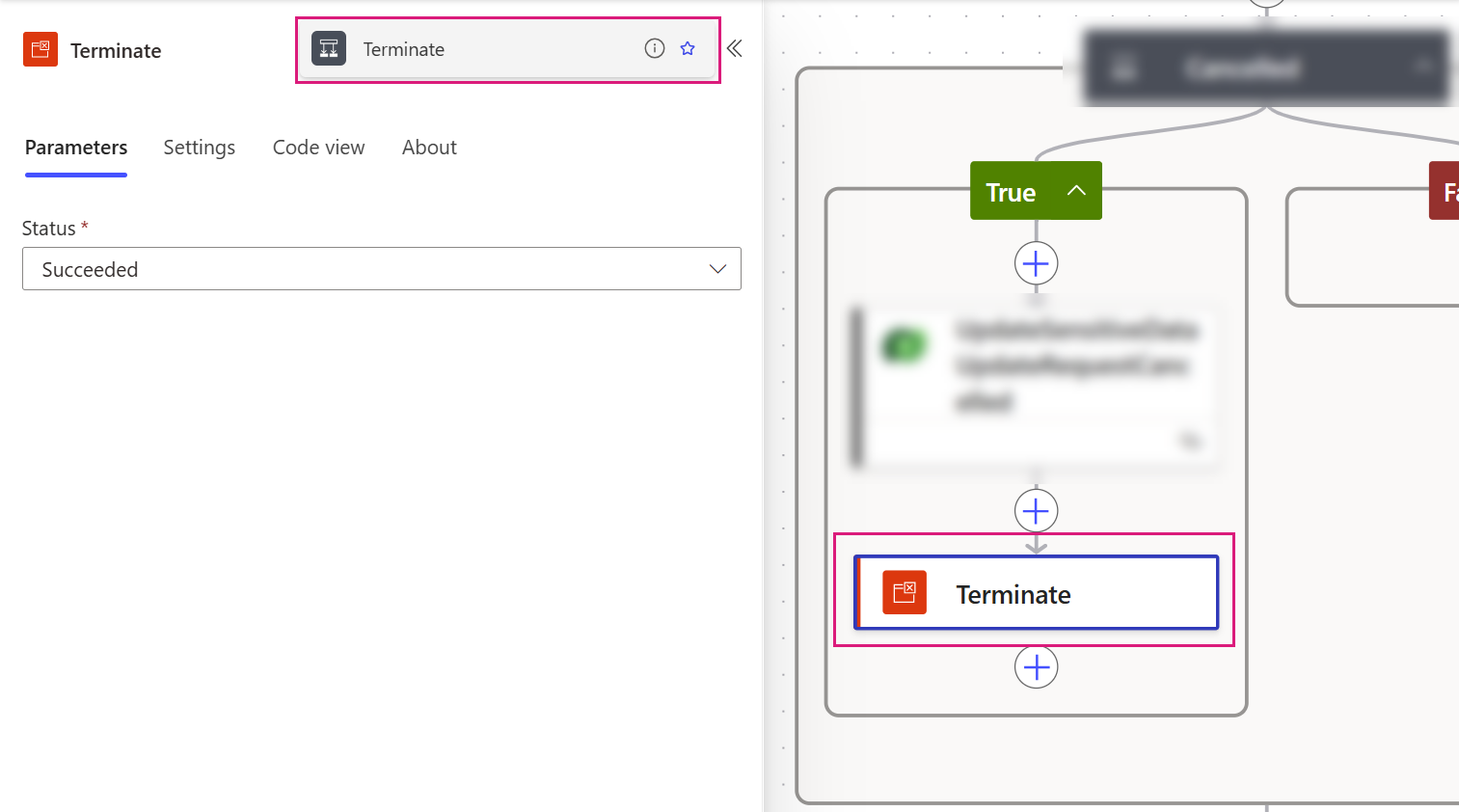
Cancel flow run
No further processing required, terminate the flow here.
Cancel
Control – Terminate
Status: Cancelled
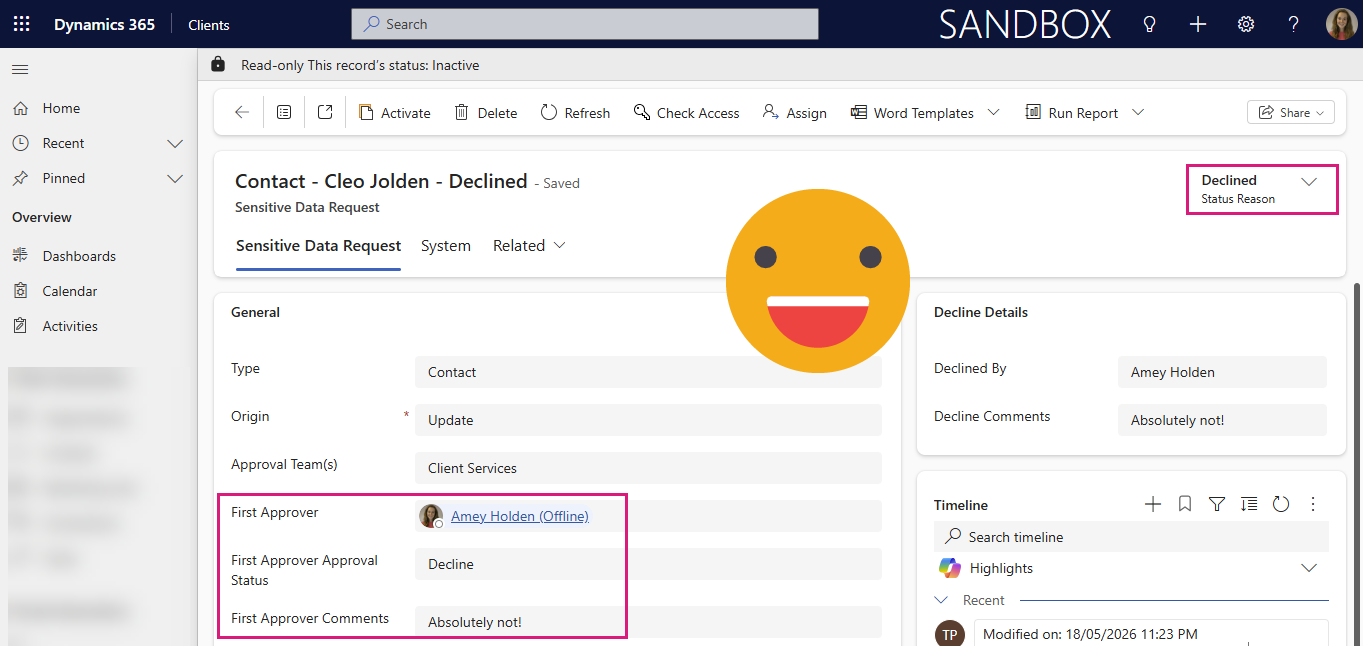
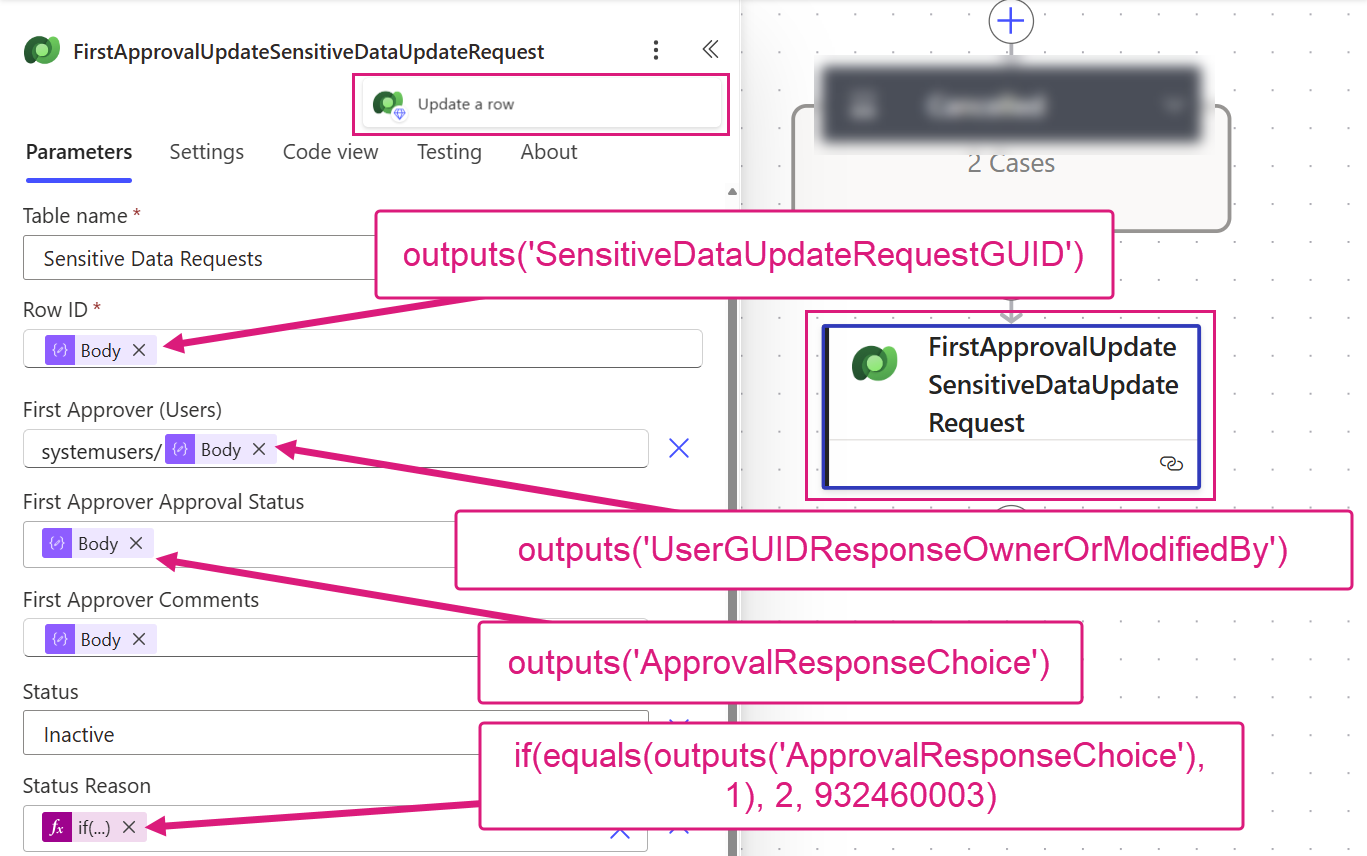
Update row which approval is for with approver name, response, comments and status
And if it was not cancelled and nothing went wrong in the steps before then we can update the row the approval was for, with all the useful approval information and relevant status transitions.
FirstApprovalUpdateSensitiveDataUpdateRequest
Dataverse - Update a row
Table name: Sensitive Data Requests
Row ID: outputs('SensitiveDataUpdateRequestGUID')
Status Reason: if(equals(outputs('ApprovalResponseChoice'), 1), 2, 932460003) (Update status reason of row to reflect approval outcome)
Status: Inactive
First Approver (Users): systemusers/outputs('UserGUIDResponseOwnerOrModifiedBy')
First Approver Approval Status: outputs('ApprovalResponseChoice')
First Approver Comments: outputs('ResponseComments')
What happens next is completely up to you
This relatively simple scenario to update the status and record a copy of the response opens opportunities for so much more, such as to start subsequent approvals, move to the next stage of a process, send notifications, and trigger integrations. Questions or comments welcome, I hope this helped you on your advanced approvals automation journey.